The Typeform integration lets workflows respond the moment a form is submitted and carry out tasks directly from your automation. With the New Entry trigger, a workflow starts as soon as a submission comes in. You can also run actions like creating new forms, duplicating existing ones, or searching past responses, helping your team automate onboarding, feedback collection, and data enrichment without any manual effort.
Key Benefits
- Form operations at scale: Create or duplicate forms automatically, allowing each client or project to have its own copy.
- Using responses: Search historic form responses to personalise follow-ups and enrich contact records.
Triggers and Actions

Setup Instructions
Connecting Typeform
Open your workflow builder and click + Add Trigger or + Add Action, then search for Typeform and select the desired trigger or action.

Click Connect Now, sign in to Typeform, and authorise access.

Otherwise, navigate to Settings → Integrations, locate Typeform, and complete the OAuth connection, noting that connections are workspace-specific.

Building Your Workflow
Add the New Entry (Instant) trigger and select the desired form within the Form filter.

Add Typeform actions such as creating or duplicating forms, or searching for responses.

Map form fields to contact or task records as needed, add follow-up actions such as sending emails, notifications, or creating tasks, then publish the workflow and submit a test entry to check it's working as expected.
Use Cases
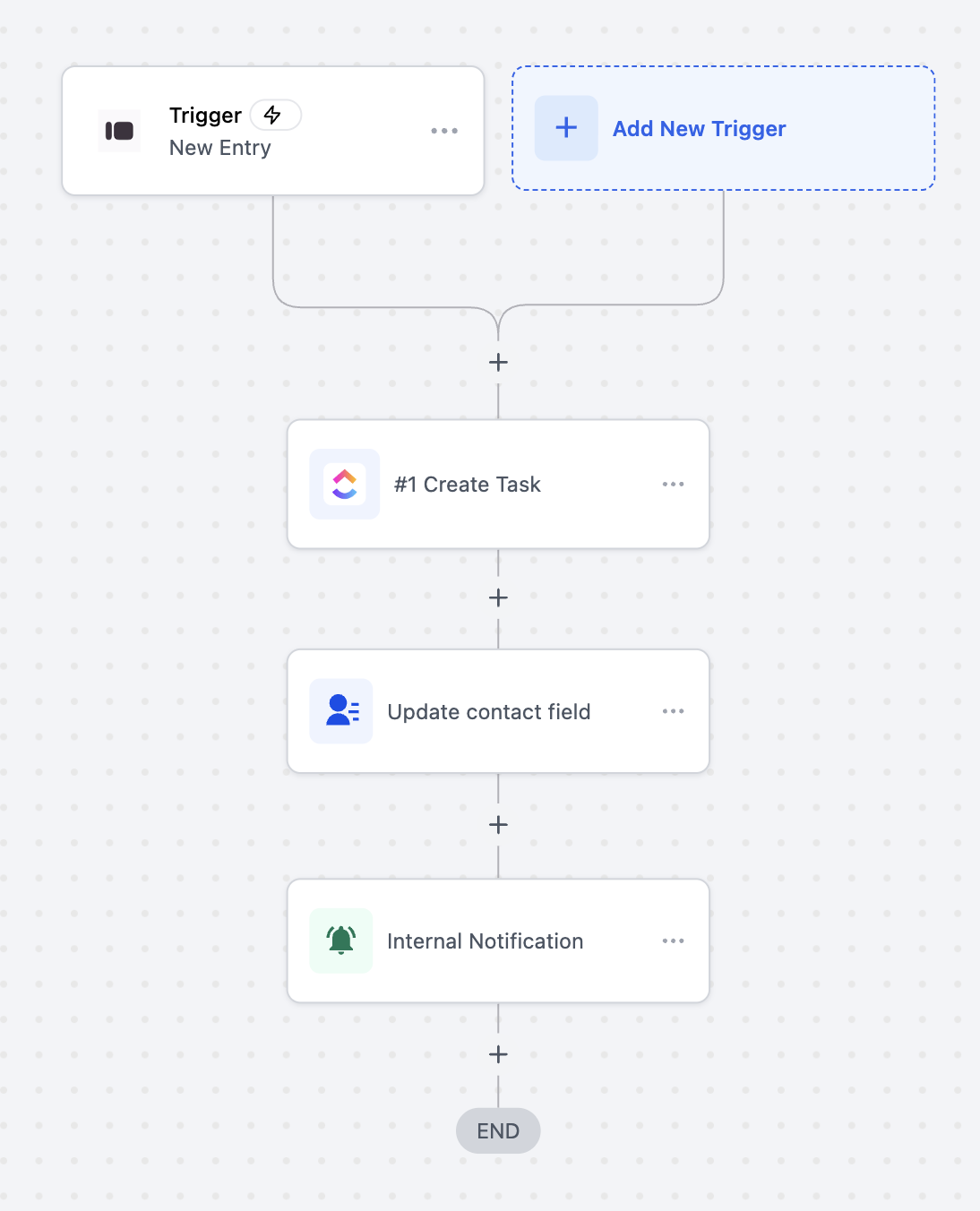
Use Case 1: Automate Task Creation and Team Notification
Goal: Automatically create a task, update contact information, and notify the team when a Typeform is submitted.
- Setup: Trigger = New Entry (Instant), Filter = Form Name "Client Onboarding Form," Actions = Create Task, Update Contact Field, Send Internal Notification.
A new client completes the onboarding form, triggering task creation, contact update, and team notification instantly.
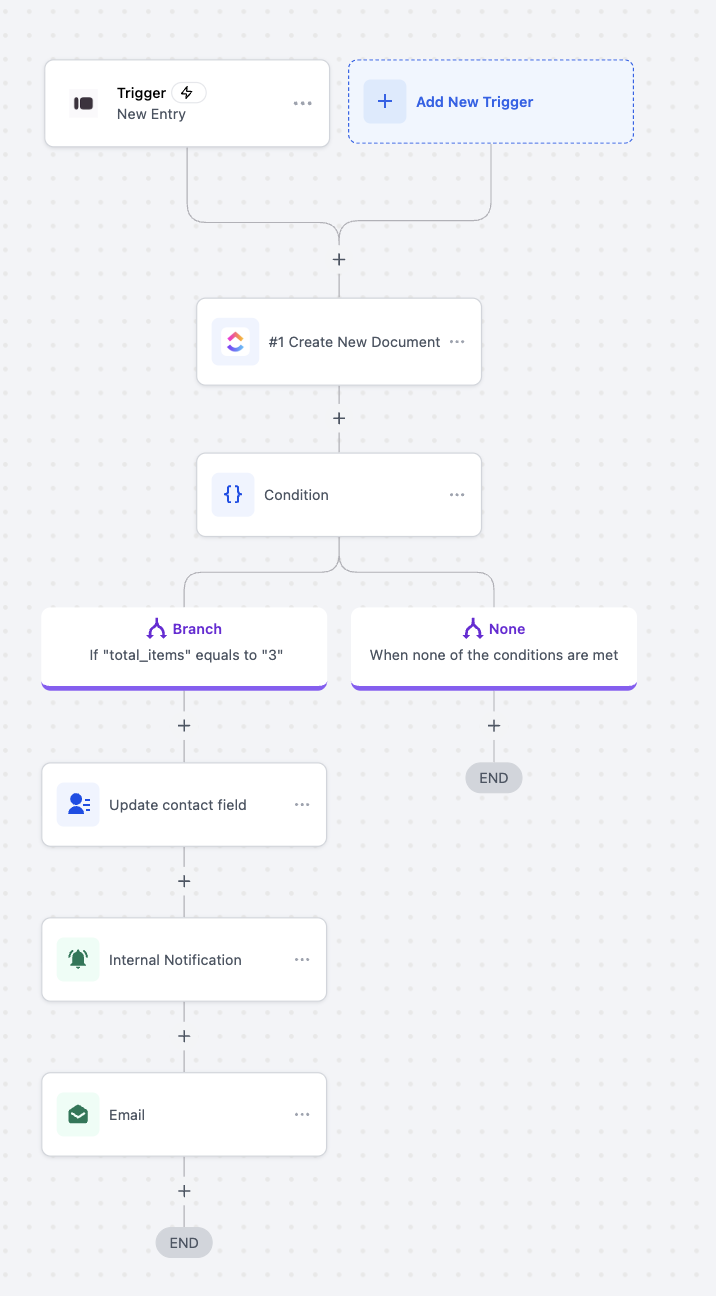
Use Case 2: Conditional Task Creation Based on Form Responses
Goal: Automatically create documents, check submission values, and trigger different actions based on response data.
- Setup: Trigger = New Entry (Instant), Filter = Form Name "Order Submission Form," Actions = Create Document, Conditional Branching, Update Contact Field, Send Notifications.
A customer submits an order; if exactly three items are ordered, contact records are updated, notifications are sent, and confirmation emails are triggered. Otherwise, the workflow ends without additional actions.
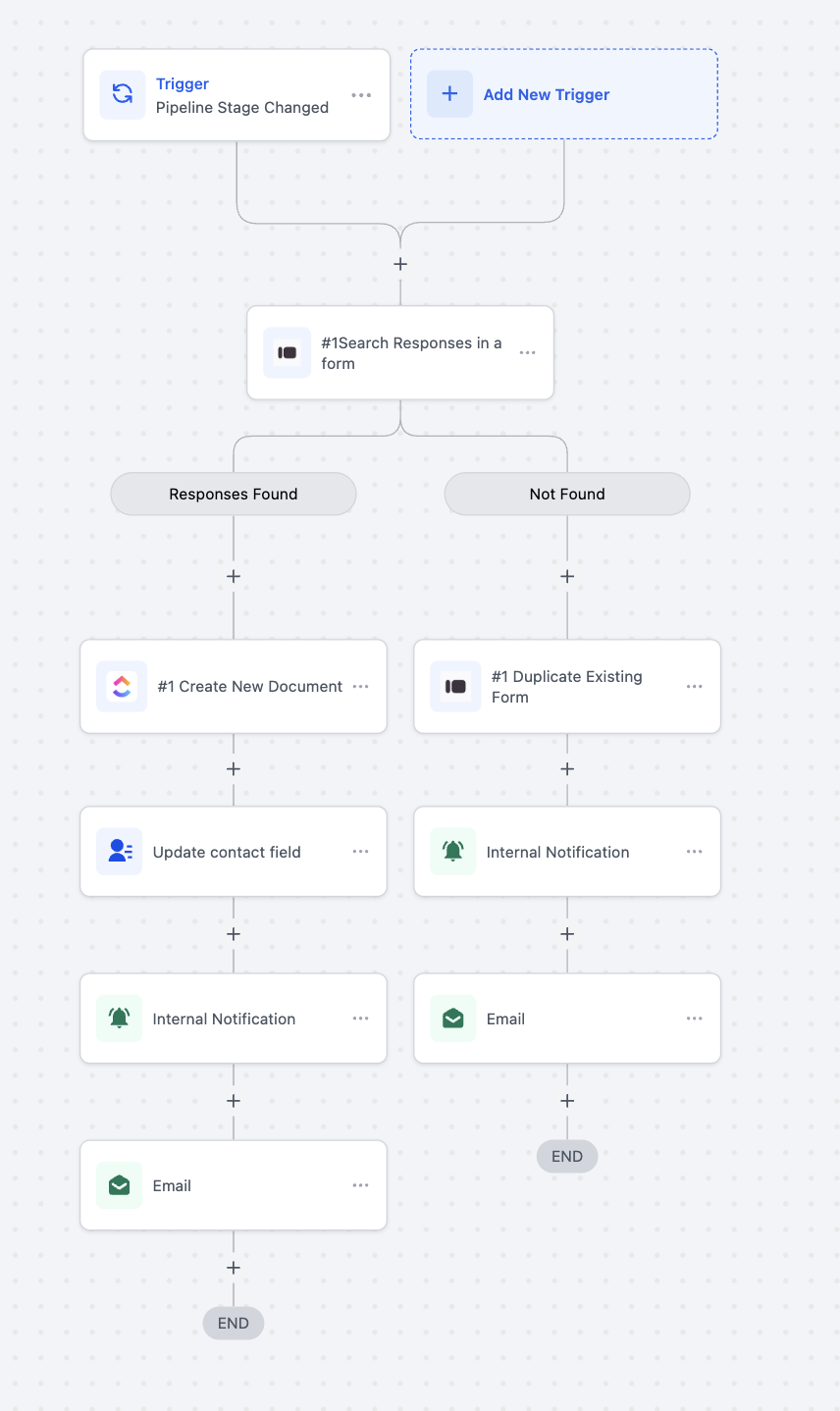
.Use Case 3: Automate Document Creation and Notifications on Pipeline Changes
Goal: Check for existing Typeform responses when a deal stage changes, create or duplicate documents, and notify the team or client.
- Setup: Trigger = Pipeline Stage Changed, Filter = Pipeline "Client Onboarding Pipeline," Actions = Search Responses, Create or Duplicate Document, Update Contact Field, Send Notifications.
When a deal moves to "Onboarding," the system searches for prior responses. If found, a new document is created, contact records updated, and notifications sent. If none exist, a new form is duplicated, and notifications are triggered.
Connecting Typeform to your automation lets your team respond instantly to submissions, automate task creation, and streamline client onboarding or feedback collection. Cutting down on manual effort and bringing everything into one flow means a faster, more consistent process across all your workflows.
Frequently Asked Questions
Do I need a paid Typeform account?
- No. Free and paid accounts are supported, though Typeform plan limits (e.g., responses, branding) still apply.
Are Typeform steps premium-billed?
- Yes, each trigger and action counts toward standard execution billing.
Where do new or duplicated forms appear?
- Forms are created in the connected Typeform workspace linked to the authorised account.
How to troubleshoot failures?
- Check execution logs for errors such as invalid form ID or expired authorisation. Reconnect Typeform and test again if needed.