Collecting payments is central to running a business, and invoices and estimates are two of the most common ways to do it. Invoices let you collect payment from clients after a sale or service; estimates give clients a sense of expected costs before they commit. You might already be familiar with the standard approach: fill in the client and item details, then send.
The CRM includes features that make the invoicing and estimation process smoother for you and your clients. Here's how to set them up.
Accessing Invoice & Estimate Settings
Go to the Invoices & Estimates tab in the Payments section. Inside, click the Settings button to access the various configurations.

Once inside the Invoice & Estimate Settings, you'll find several options for adjusting how your invoices and estimates work:

Payment Settings
- Estimate Expiry Days: Set the number of days before an estimate expires by adjusting the Estimate Expiry Days.
- Estimate Prefix: Use the Estimate Prefix to assign a unique prefix, making it easier to tell different estimates apart in your system.
- Invoice Due Date: This fills in the due date on created invoices by default. If you have a standard or legally required timeframe for your invoices, you can set it here once rather than entering it each time. The due date can still be changed directly on individual invoices, but any changes will only apply to that invoice.
- Invoice Prefix: Use the Invoice Prefix to distinguish between different invoices in your system.

Manage Default Stripe Payment Methods
You can configure bank-only transfers as a payment option for invoices, making it easier to offer preferred payment methods to clients.

Customers can pay via a valid payment method or through SEPA and ACH bank transfers. This feature currently supports Stripe for ACH (Automated Clearing House) and SEPA (Single Euro Payments Area) transfers. When enabled, customers will only see the bank transfer option during payment.

📌NOTE: This payment method is not available for invoices in currencies unsupported by these payment methods.
Partial Payments
Partial Payments let your customers pay for portions of an invoice rather than the full amount in one go, while still giving you control over the minimum they can pay. You won't need to worry about receiving microtransactions, and it helps improve client payment capture rates.

To activate it, toggle the option on and set the minimum percentage you're willing to accept each time.

Client View
When the invoice is sent, clients will see a pencil icon next to the amount. Clicking it lets them edit the amount to be paid.
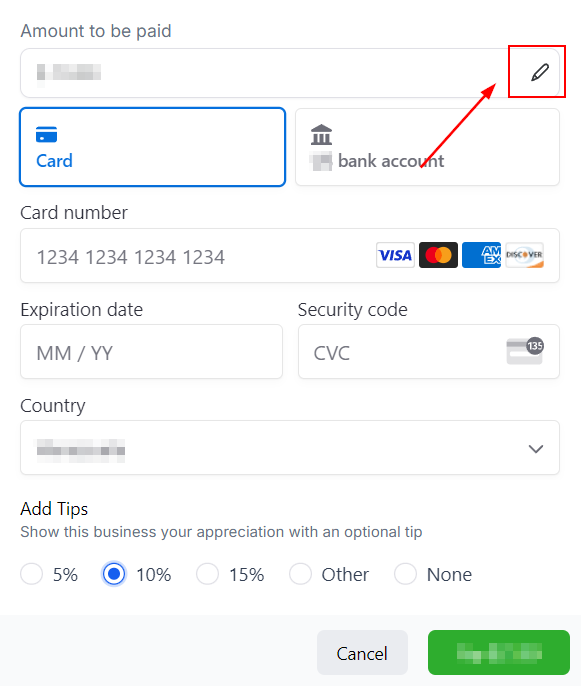
📌NOTE: For recurring invoices, partial payment will only be available on invoices with auto payment disabled or the first payment of invoices with auto payment enabled.
Charge Late Fees
This option lets you charge customers an extra percentage for exceeding the payment due date. To learn how to manage it, please read "How to Set Up Late Fees on Invoices."

Tip Payments
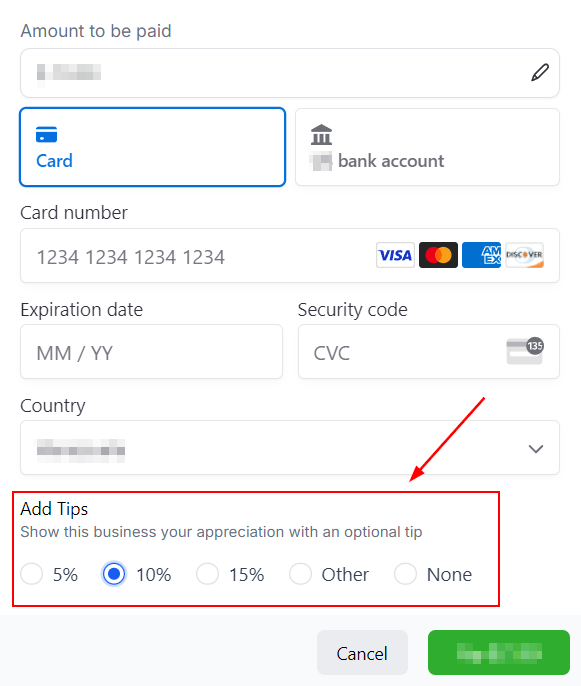
Enable Tips to let customers show their appreciation by leaving an optional gratuity. You can set default tip percentage options for them to choose from, or they can enter a custom amount.

To activate it, toggle the option on and set the percentages you'd like to offer by default.

When customers are paying, the tip will be optional. They can quickly choose from the options provided, enter their own amount, or select None.
Finishing the Setup
Once you're happy with all the settings, click the Save button. These settings will apply to all future invoices and estimates you create. If your policies change, you can always come back and adjust them.

Setting up these features saves time and effort, as they apply globally to all your invoices and estimates going forward.
Frequently Asked Questions
Q: Why aren't my invoices or estimates being sent?
- A: Check that a payment gateway is integrated. Go to the Integrations tab to verify whether your payment gateway is connected. If it isn't, connect it before continuing.
Q: Do I need to refund the tip separately when refunding an invoice?
- A: No, you can refund the full invoice amount, including any tips.
Q: How do I enable bank transfers only for an invoice?
- A: Open the invoice, click on the three-dot menu, select Manage Payment Methods, and toggle on Bank Transfers Only.
Q: Can I customise payment methods for individual invoices without affecting global settings?
- A: Yes, you can modify payment methods on a per-invoice basis while keeping the global configuration intact.