Building a course takes real effort, and tracking how your clients progress through it helps you keep them engaged. You can make sure they complete the material, leave with a positive experience, and become strong candidates for upsells. The Membership Analytics section also helps you understand the return your courses are delivering.
Product Analytics
Here you can view the progress of each of your courses and assessments. You can see their progress level (as a percentage), their first login date and time, the last time they visited the product, and how many times they have logged in.

Course Progress

Once you select course progress, you will be taken to this page where you can choose the product you want to view.

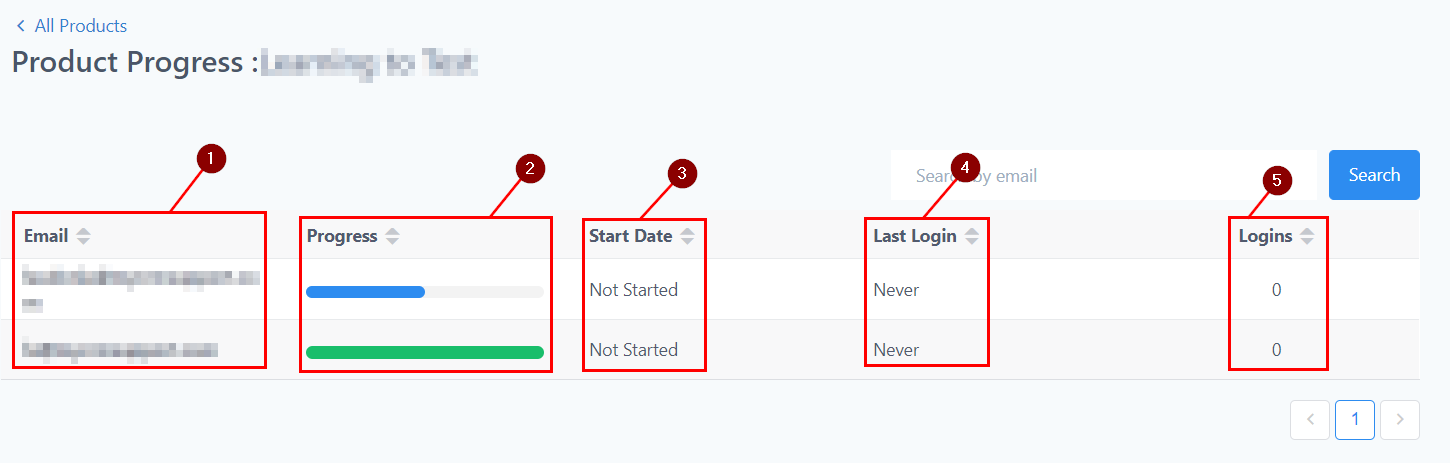
- Email: The email address of each visitor who logged in to the product.
- Progress: Shows the visitor's progress as a percentage. 100% means they viewed the entire module; anything below 100% means they haven't finished it; no percentage bar at all means they haven't opened the product yet.
- Start Date: The first time and date the visitor opened this product.
- Last Login: The most recent time and date they visited the product page.
- Login: The number of times the visitor has opened this product page.
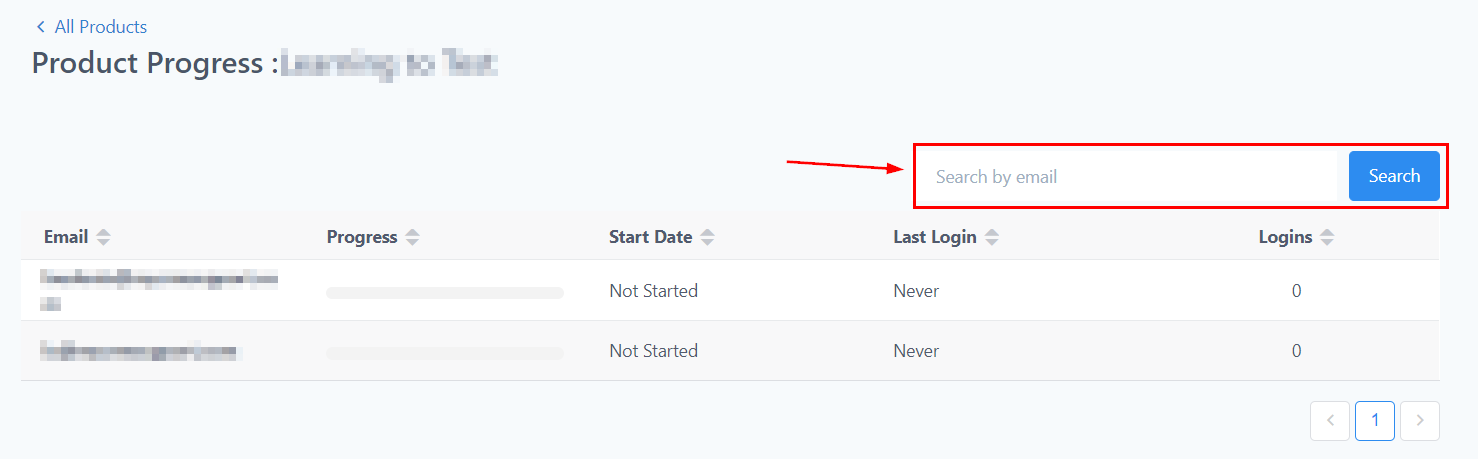
Search Filter
If you have a large number of visitors, you can search for a specific visitor by filtering on their email address.
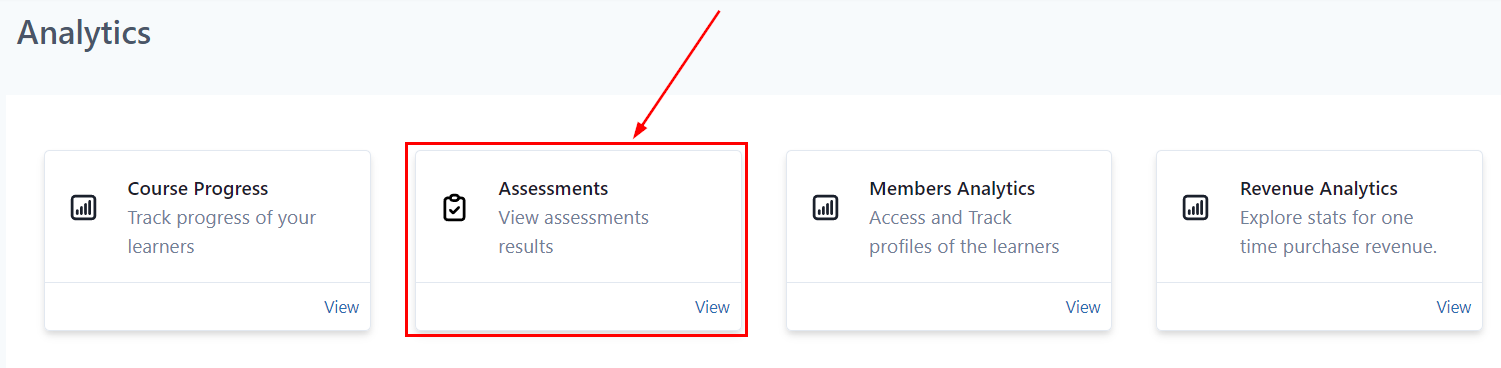
Assessment Analytics
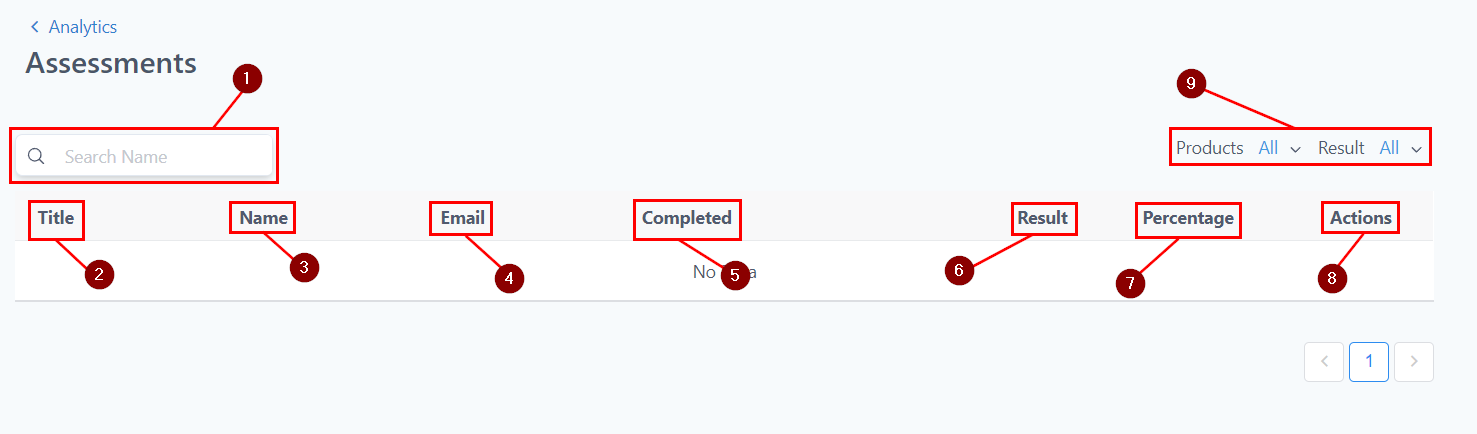
To view your assessment progress, click here to be taken to the assessment progress table.
- Search Bar: Search for a visitor by filtering on the member's name or assessment title.
- Title: The title of each assessment.
- Name: The names of each member who took the assessment.
- Email: The email address of each member who took the assessment.
- Completed: Whether the member completed the assessment or not.
- Result: Whether each member Passed or Failed.
- Percentage: The percentage score for their grade.
- Actions: Click the eye icon next to a submission to see the answers they submitted.
- Filter: Filter assessment analytics by a specific product using the dropdown next to Products in the top right, or filter by Results.
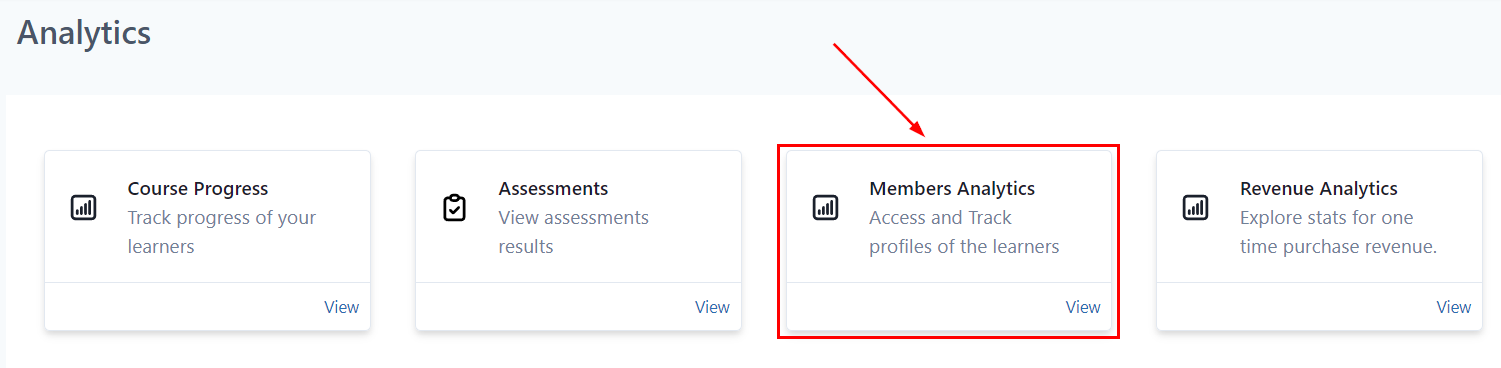
Members Analytics
Monitor the progress of every user enrolled in your courses.
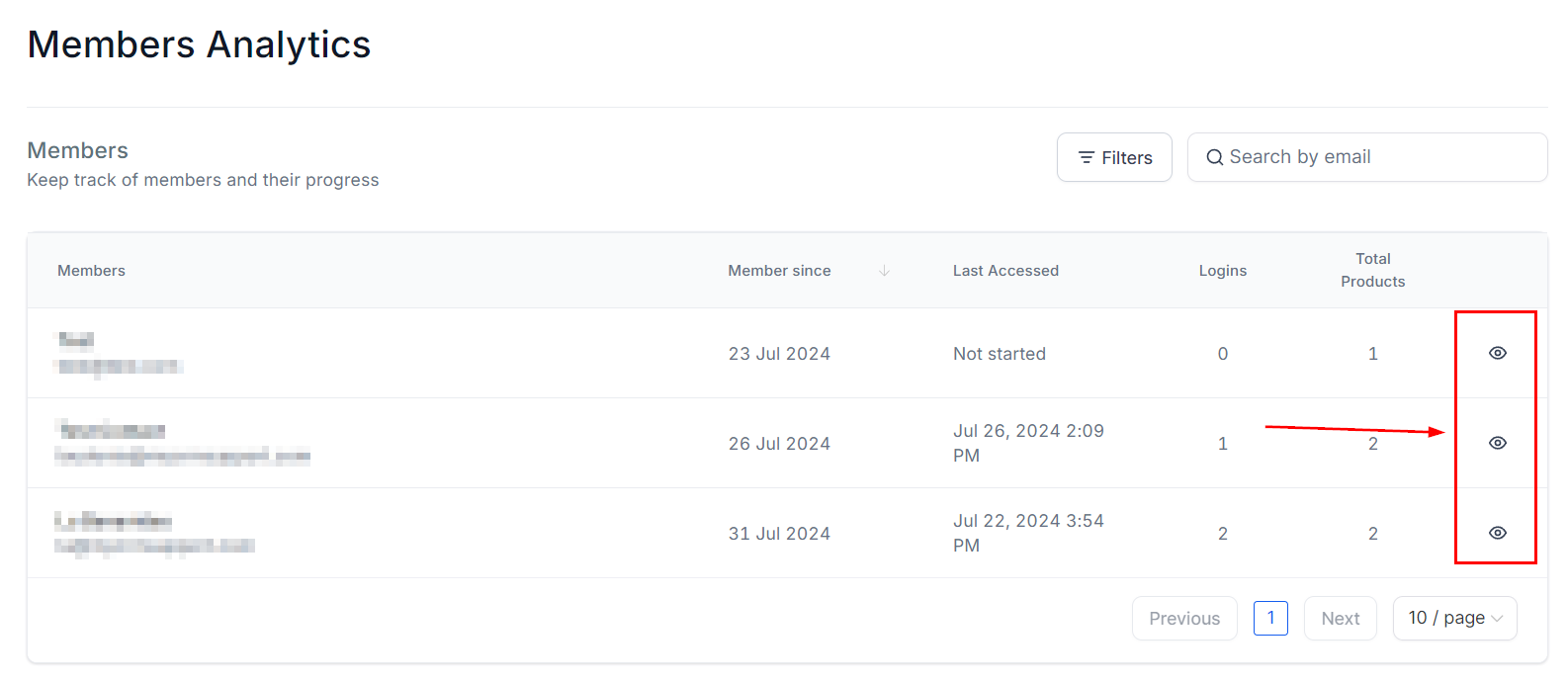
Track Progress
For a detailed view of how each member is progressing through the course, click this icon.
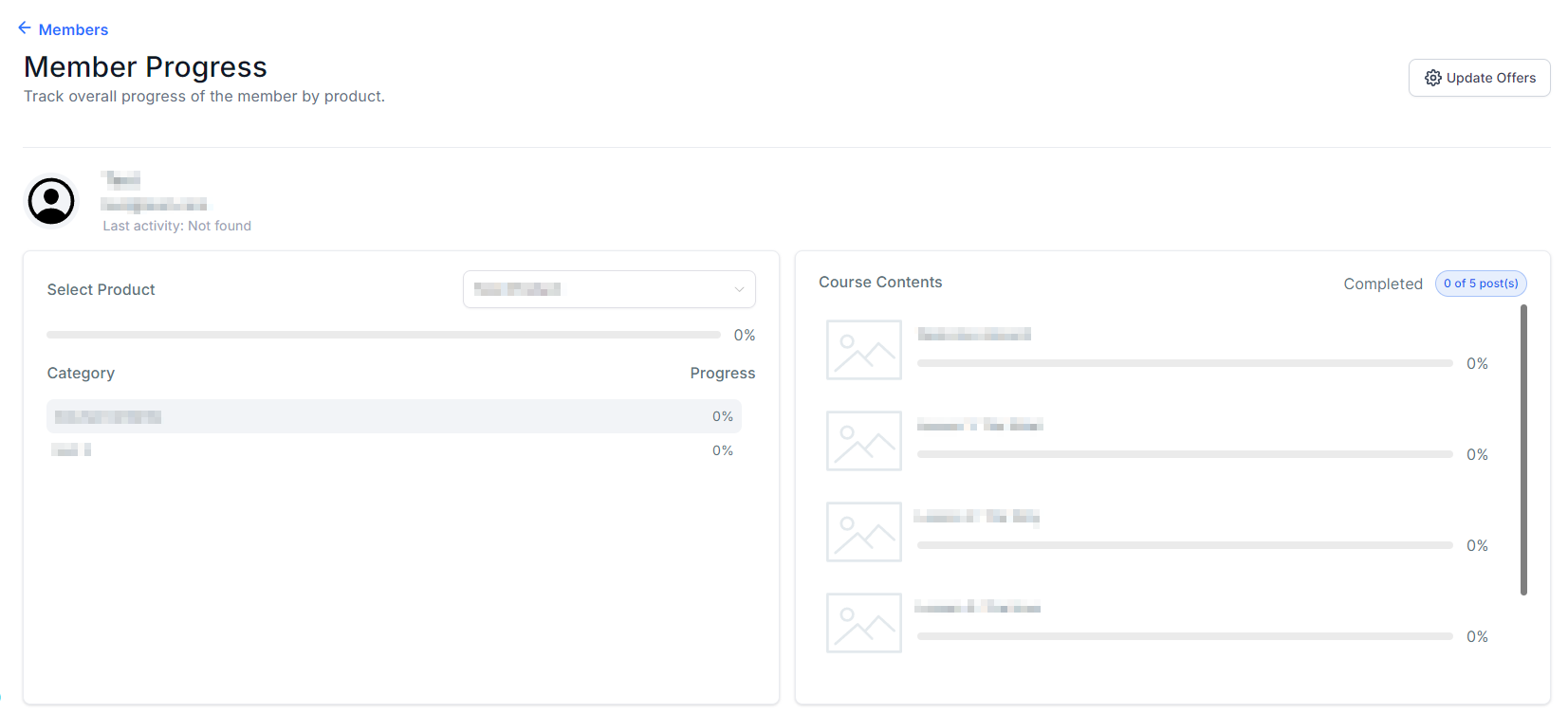
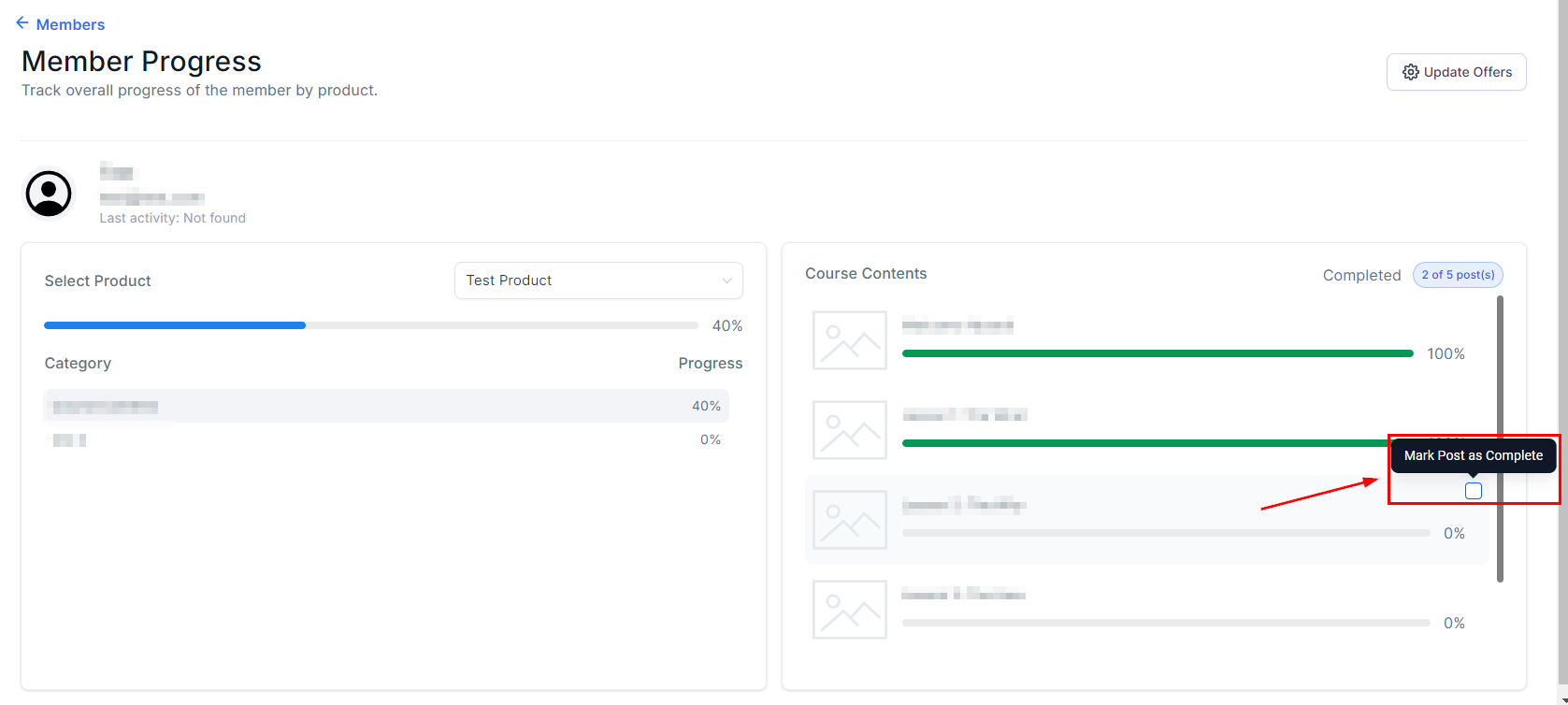
Members Progress
This area shows the lessons the selected member has completed so far.
Marking Completion
Using this checkbox, instructors can mark a course step as complete.
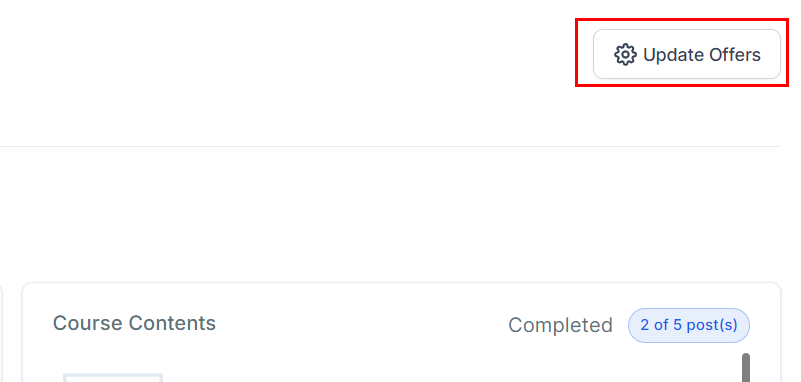
Update Offers
Click this tab to manage the membership offers for the selected member.
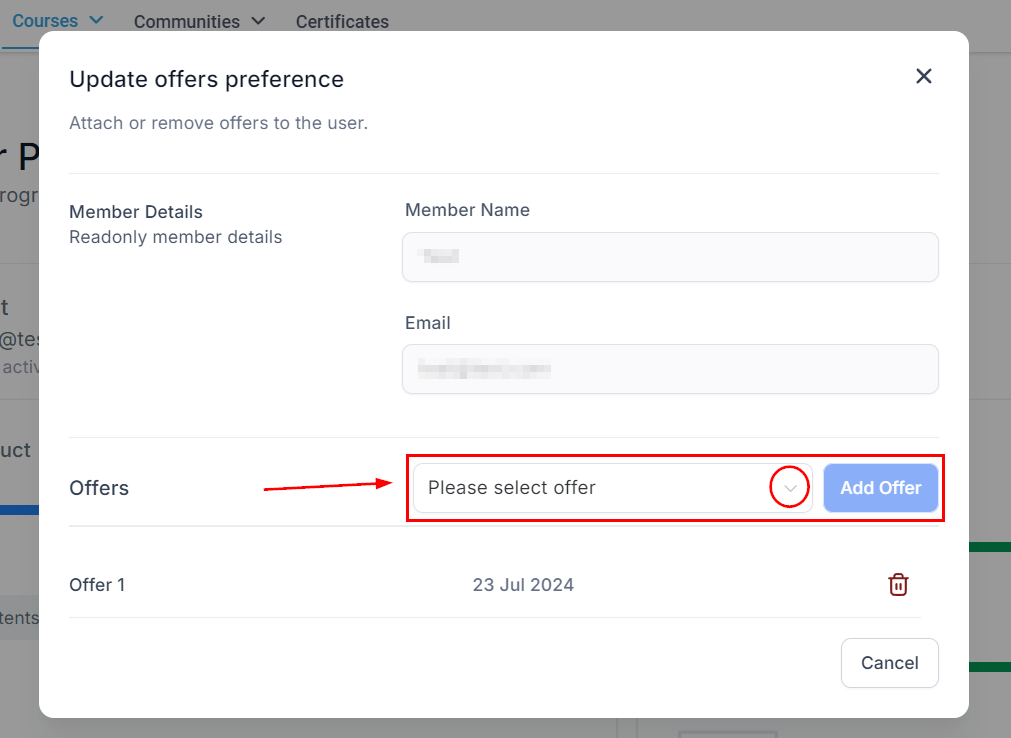
This dropdown shows the existing membership offers for you to choose from.
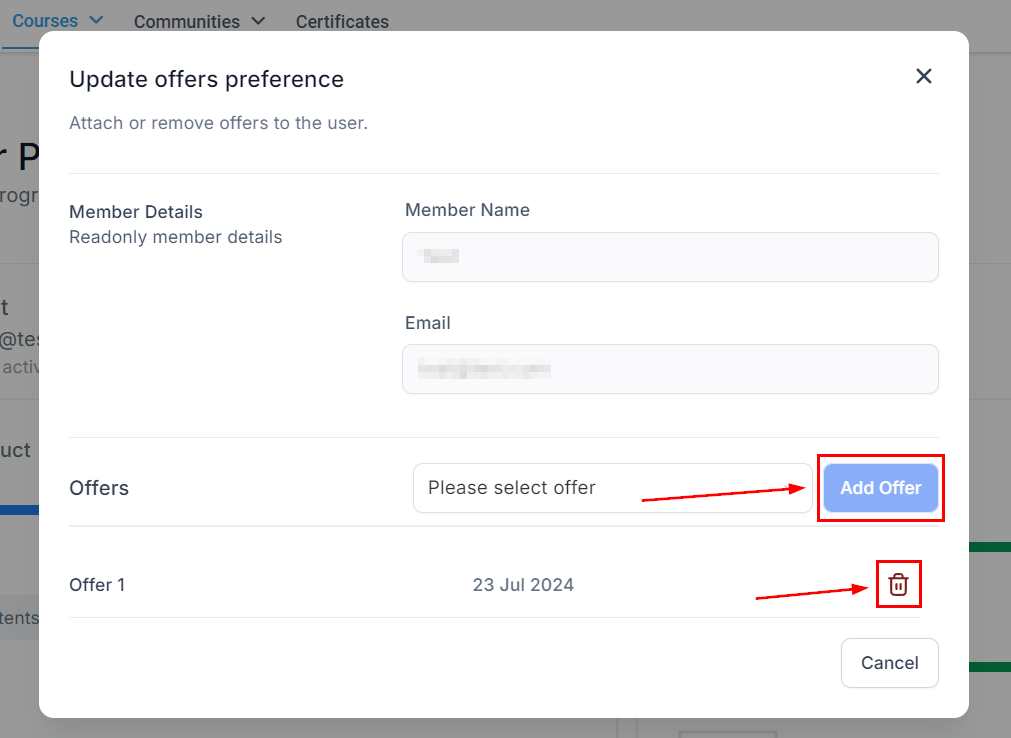
Add / Delete Offer
You can add a new offer or remove an existing one for the selected member. This is useful when you have multiple levels of course bundle to offer.
User Progress Tracking
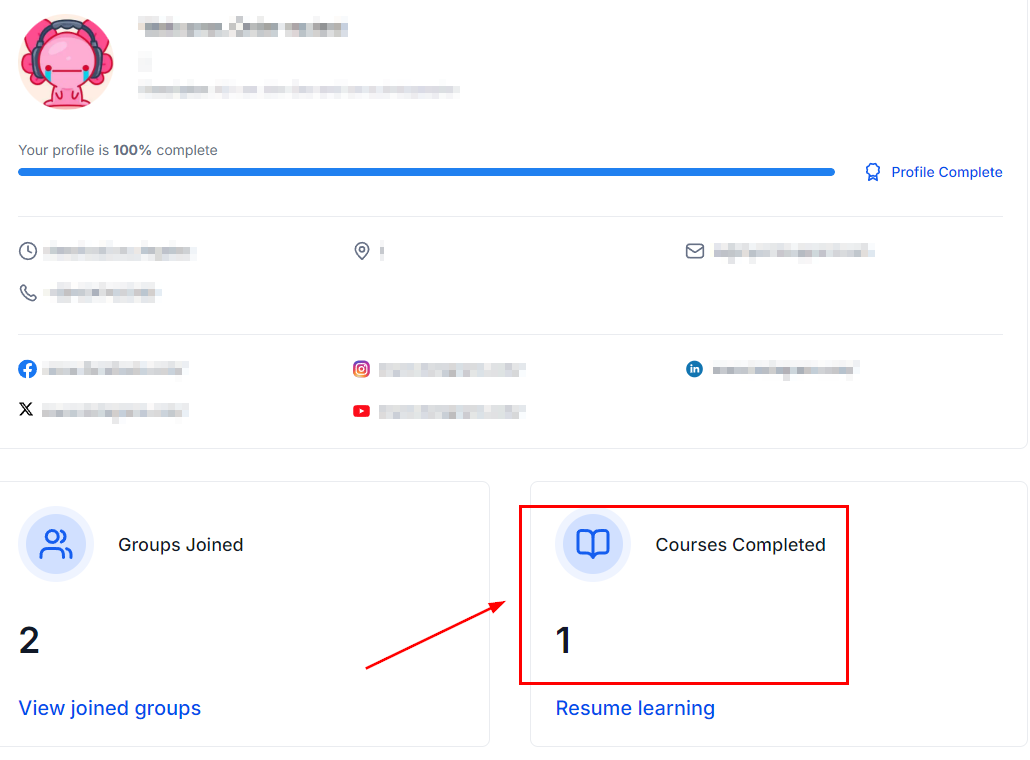
By visiting their profile inside the client portal, your customers can keep track of their own progress and review the total courses they have completed.
Revenue Analytics
This section gives you graphs and stats for the revenue generated by one-time purchases of your membership offers.

Net Revenue
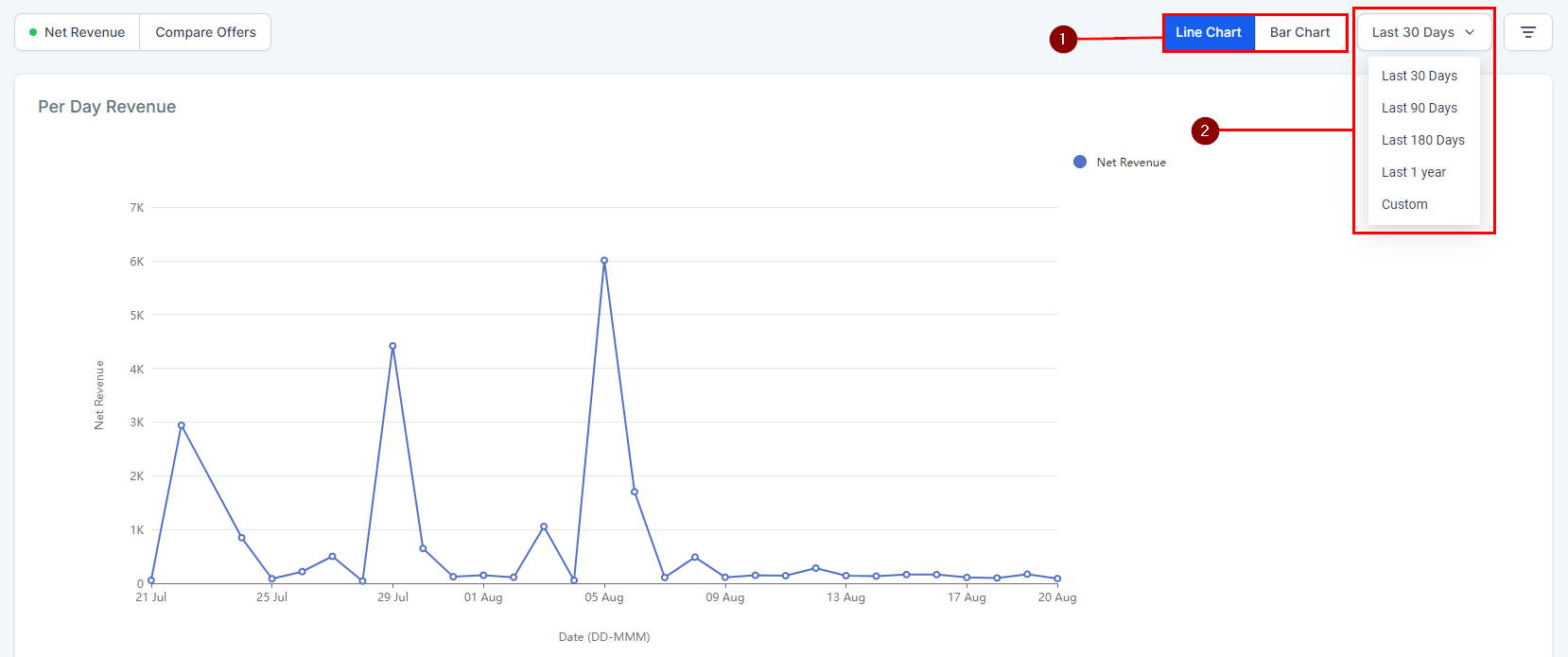
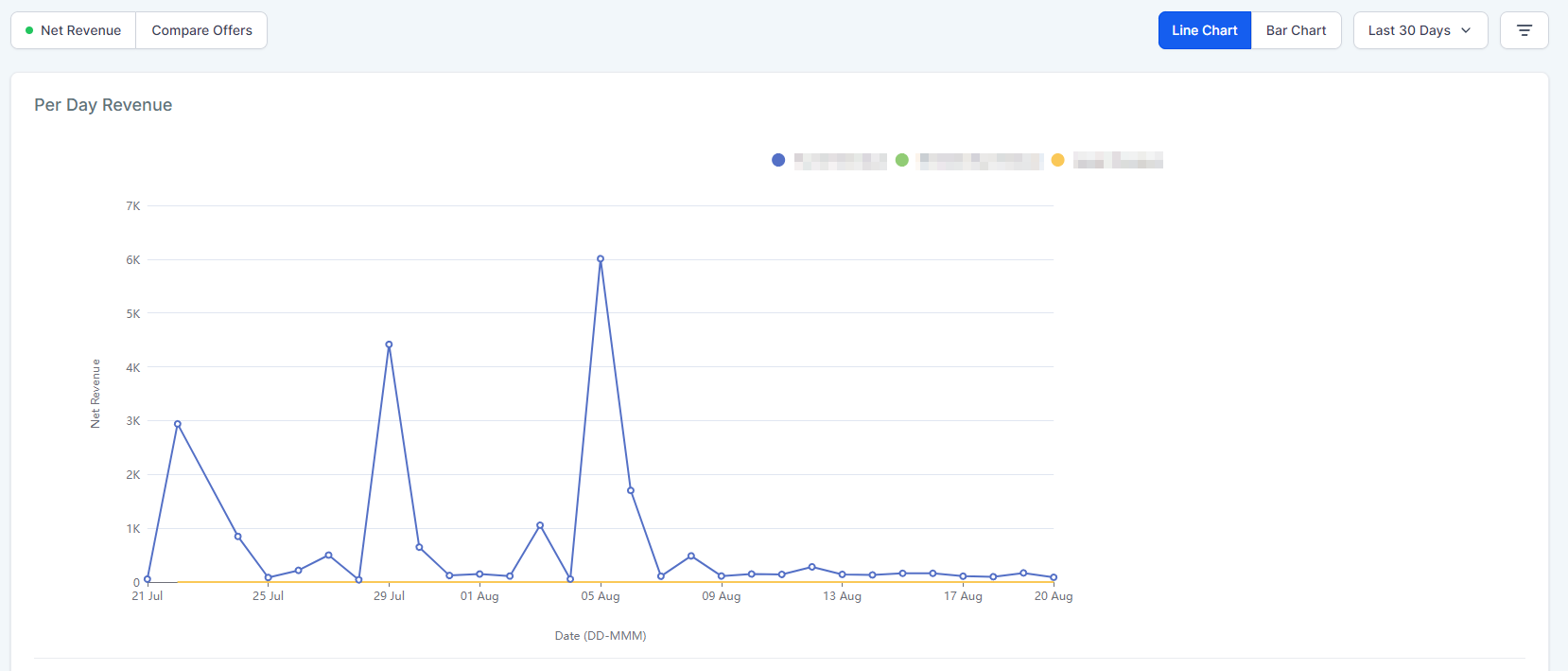
This covers data from all offers as a whole, presented in two main graphs. Per Day Revenue shows your day-to-day total revenue.
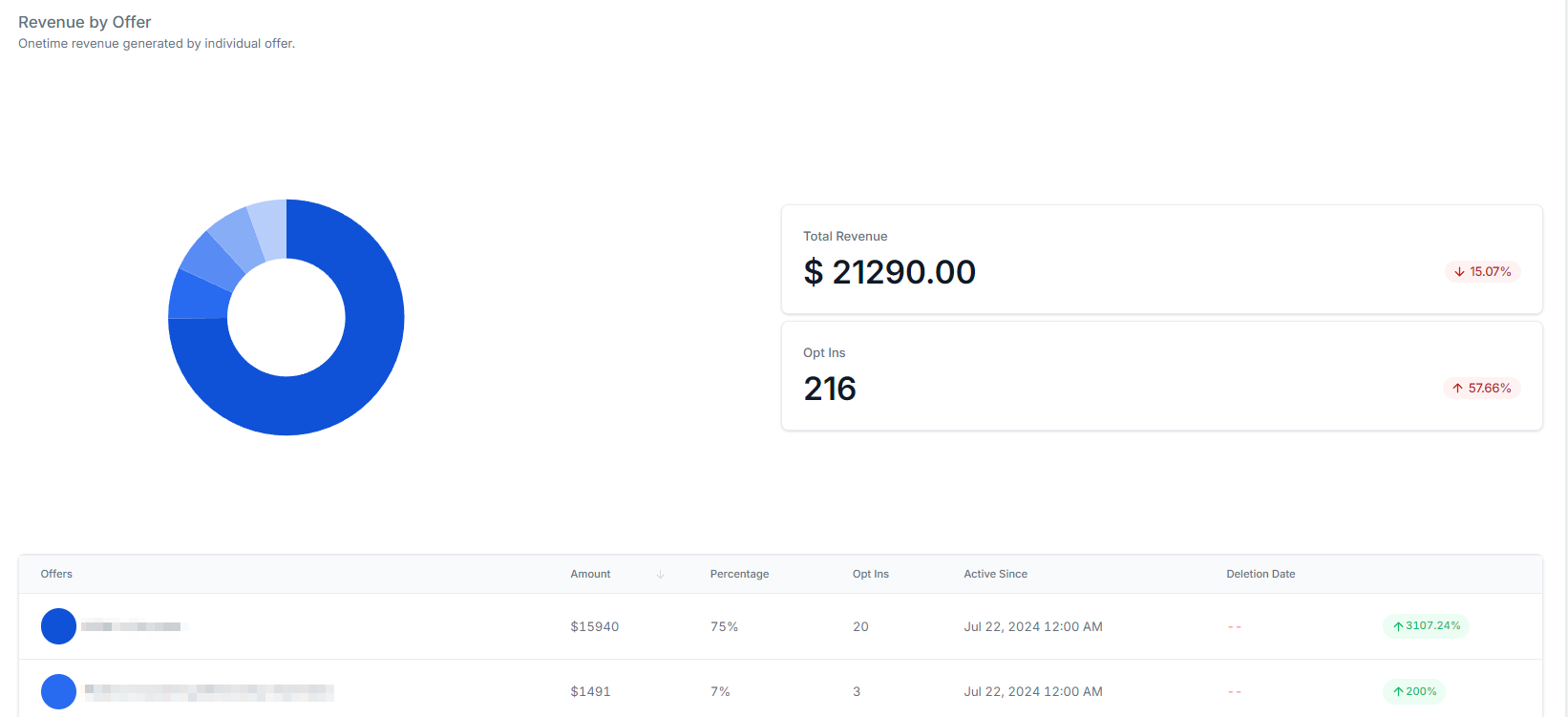
Revenue by Offer separates the data by each individual offer.
Compare Offers
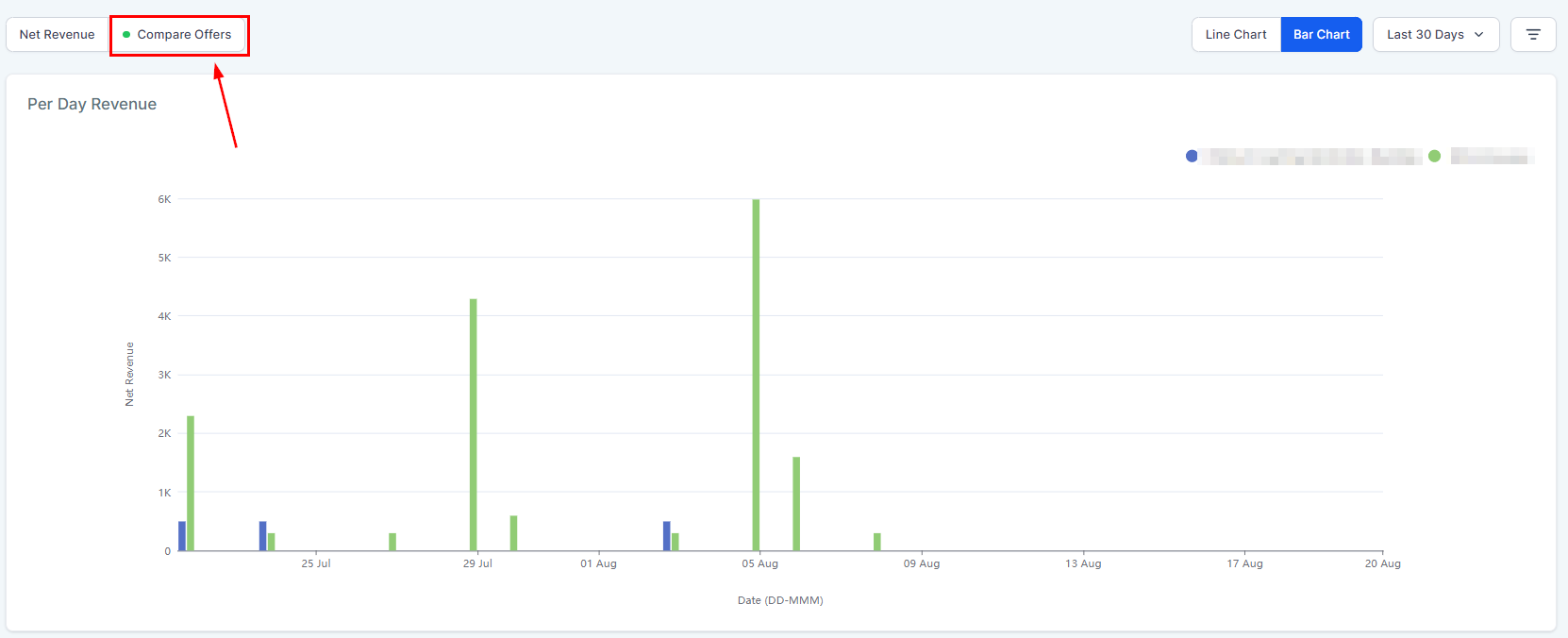
This lets you visualise data from multiple offers side by side.
Data Options
You can change how the graphs are displayed (1) and the date range they cover (2) to better understand and present the revenue information.