Using a dedicated email domain increases trust and credibility, improves deliverability, and helps you avoid getting marked as spam. However, as you run your campaigns, you might find a bit of resistance.
As people unsubscribe, email volumes grow, and campaigns run for longer, a single domain can become strained and more likely to trigger spam filters. The best way to manage this is to spread the load across different subdomains.
Before you start, you'll need at least 2 email domains connected. If you haven't done that yet, take a look at the article "Comprehensive Guide to Setting Up Your Email Services" for instructions.
Setting Multiple Domains Up
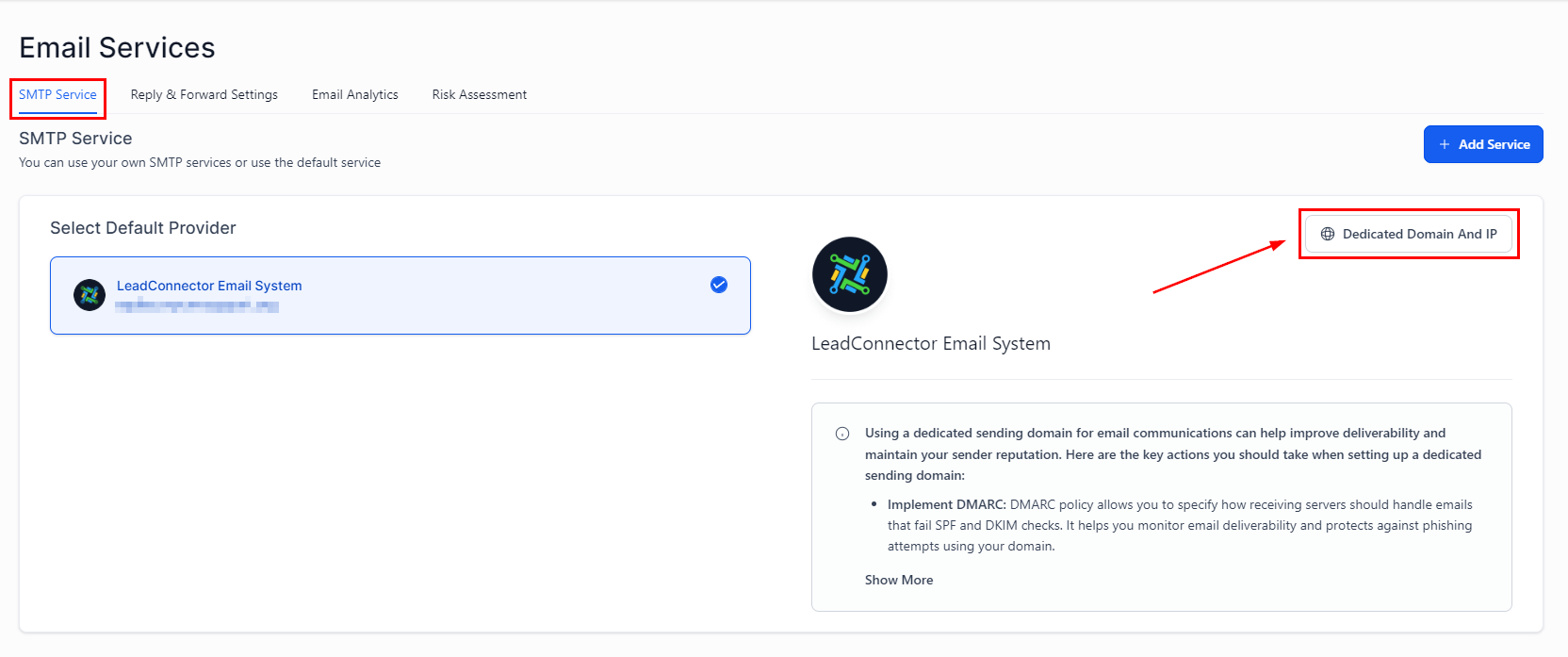
Go to the SMTP Service tab in the Email Services section of your settings, then click Dedicated Domain And IP.
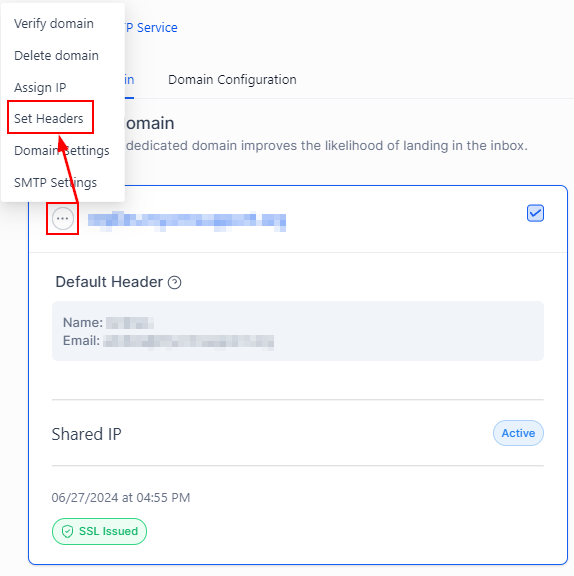
This opens a view with two tabs: Dedicated Domain and Domain Configuration. Dedicated Domain is shown by default. Here you can see all the email subdomains you've connected; clicking the three dots icon next to any domain opens its settings, where you can set the default name and email address.

Switch to Domain Configuration to set which domain you'd like to use for specific actions such as campaigns and workflows. Click the downward-pointing arrow to open the dropdown and select your domains.

Click Frequency settings to define the priority for each domain and the percentage of emails it handles.


You can add up to 5 domains per category and switch them as needed. Whenever you select a domain, the system auto-saves and updates the frequency to keep the load evenly spread. That's it; you can now make sure no single domain gets overloaded, which improves deliverability, reduces the risk of hitting spam filters, and helps your emails land in the right place.