Google Sheets is a great way to manage large volumes of data, whether you're online or offline. It keeps the editing and organising process straightforward and is a firm favourite for businesses of all sizes. That said, manually moving data from the CRM to your Sheets back and forth can be tedious and time-consuming; the more your database grows, the more of a chore it becomes. That's why it's worth automating the process instead.
With the Google Sheets Action Create Multiple Rows, you can insert new data rows below existing information with ease. As long as you've connected your Google account to the system, you can send data to any Google Sheets document without third-party integrations or extra steps.
Using the Action
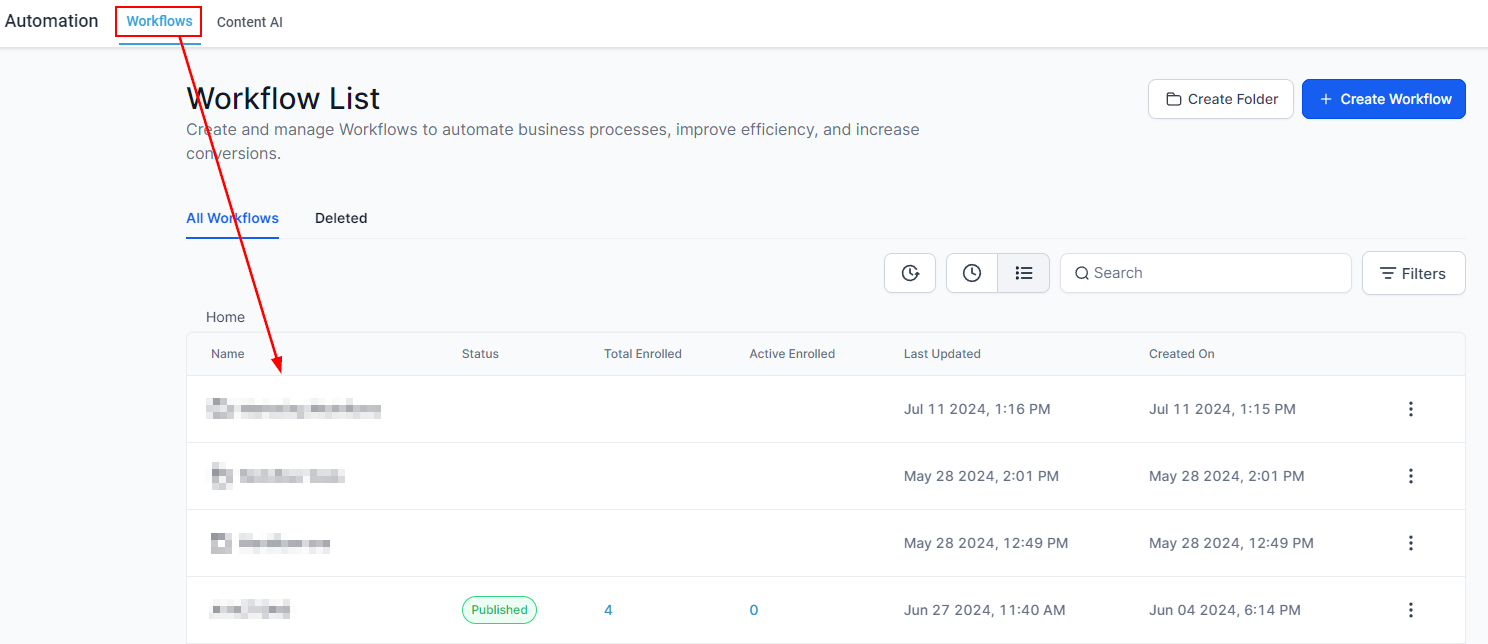
In the Workflow tab of your Automations section, select any existing workflow or create a new one.
Inside the Workflow Builder, click the + Sign button to open the action menu. The actions will be under the Send Data category.

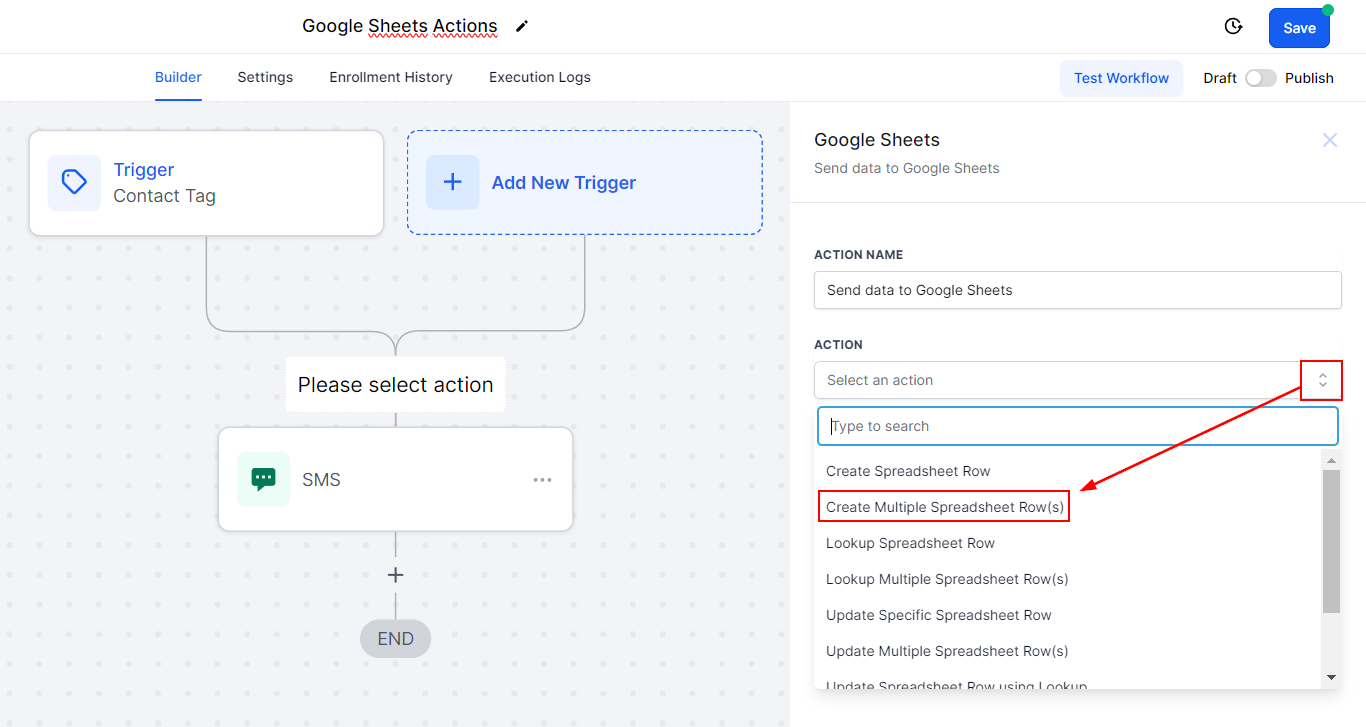
Once you've selected the action, open the drop-down menu and select Create Multiple Spreadsheet Row(s)
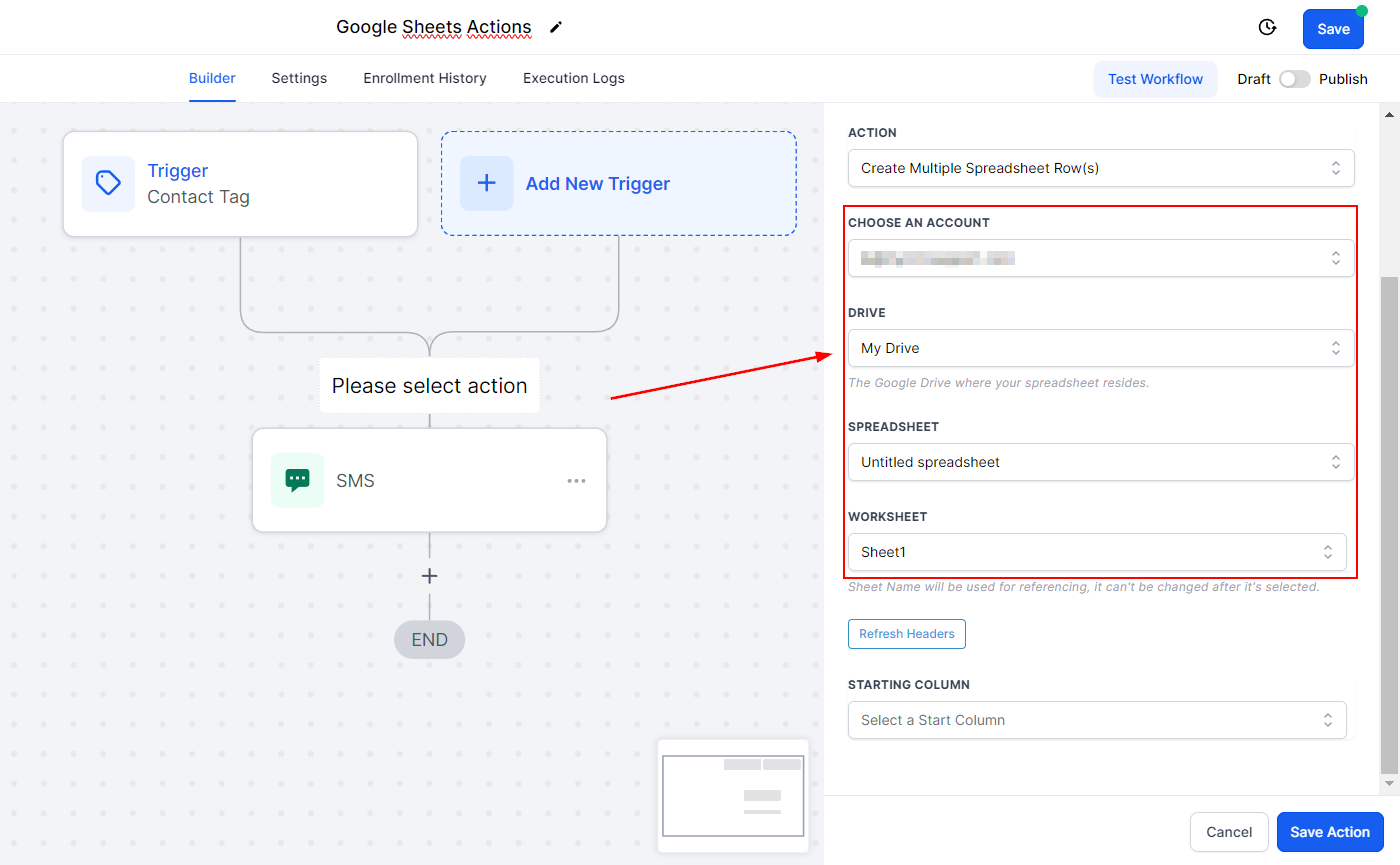
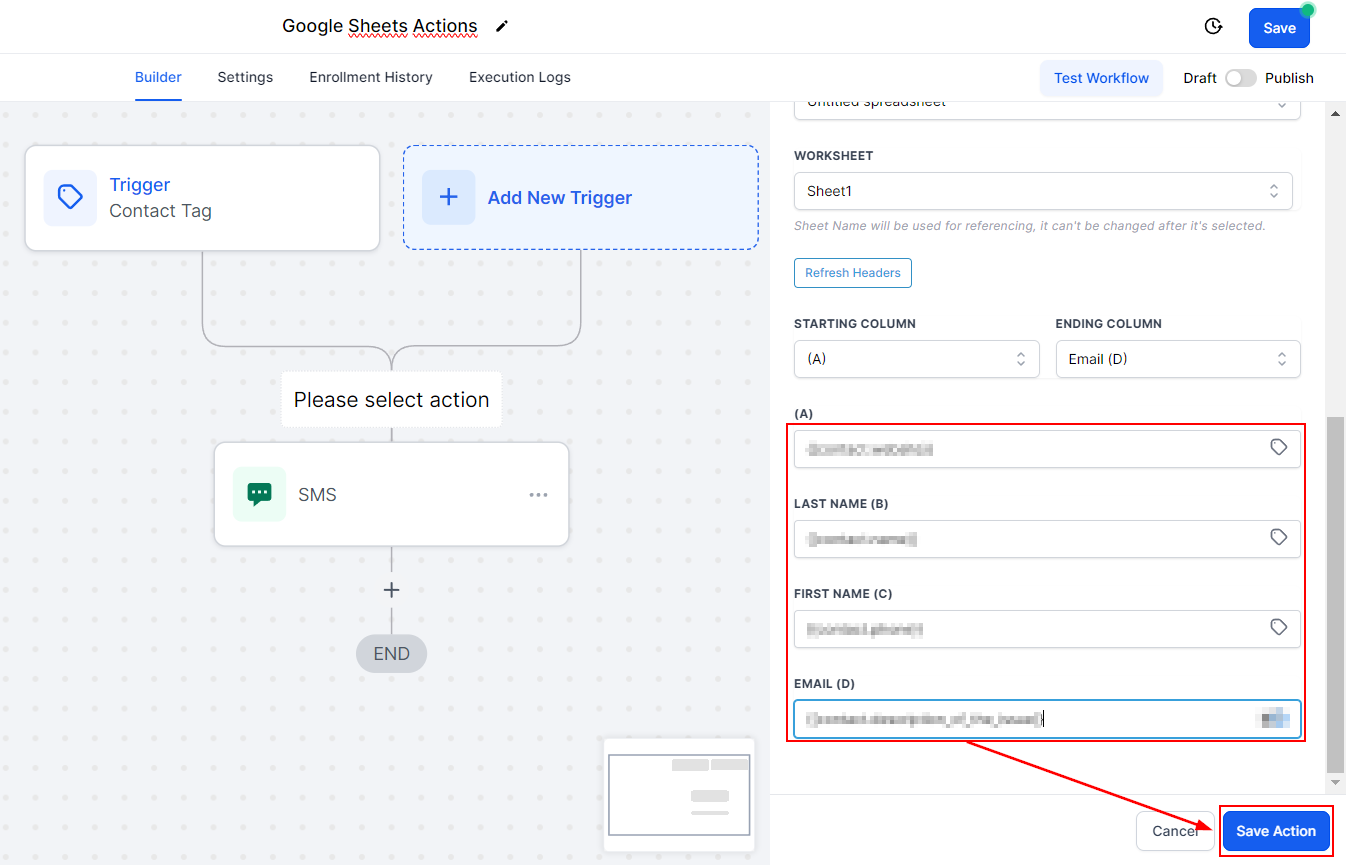
You'll need to select an account, drive, spreadsheet, and worksheet to send the data to.
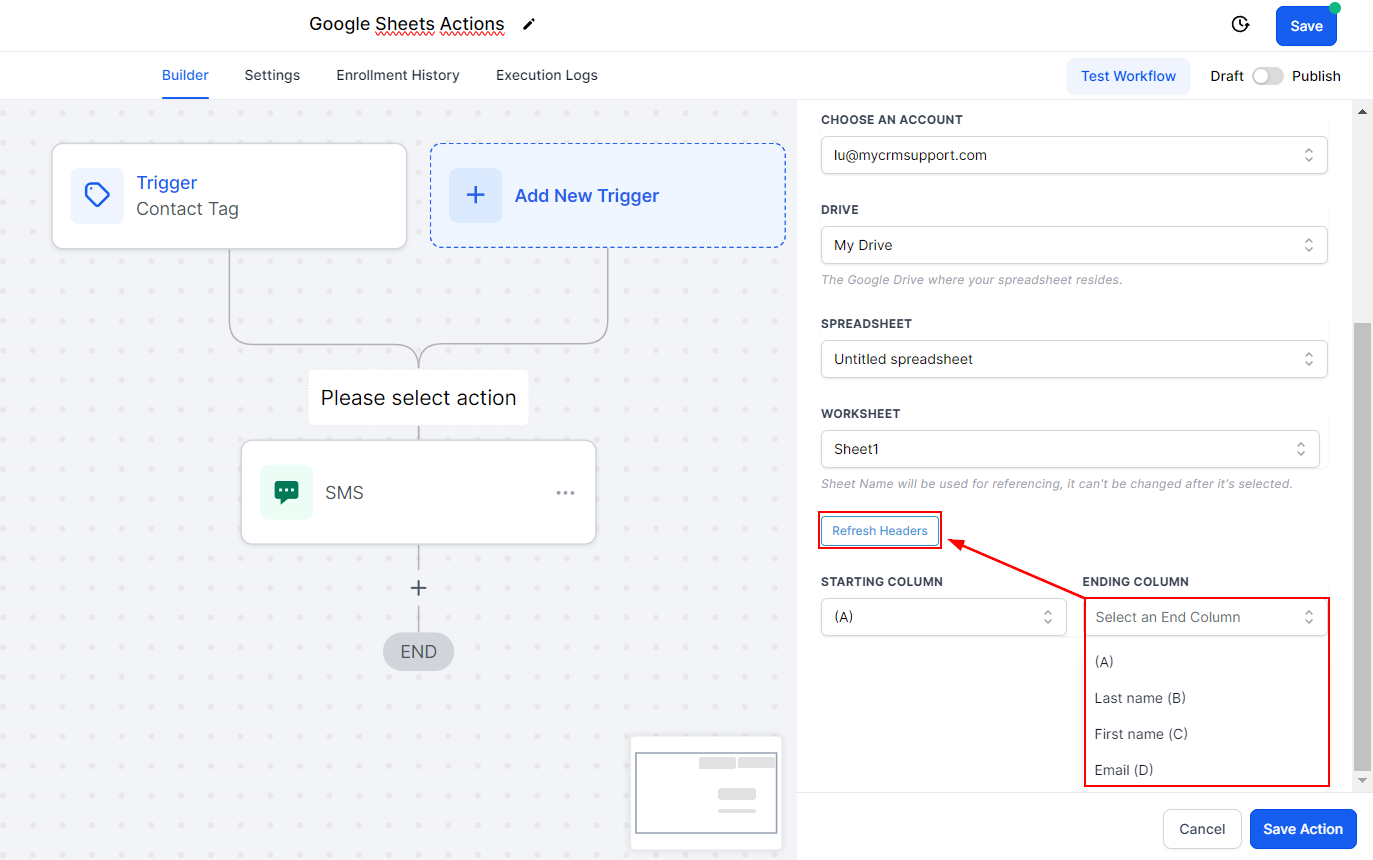
Choose a starting and ending column; header names will be displayed, but if you see any discrepancies, click "Refresh Headers" to fetch the latest data.
Insert the values you want to transfer to your Sheets, then save the action.
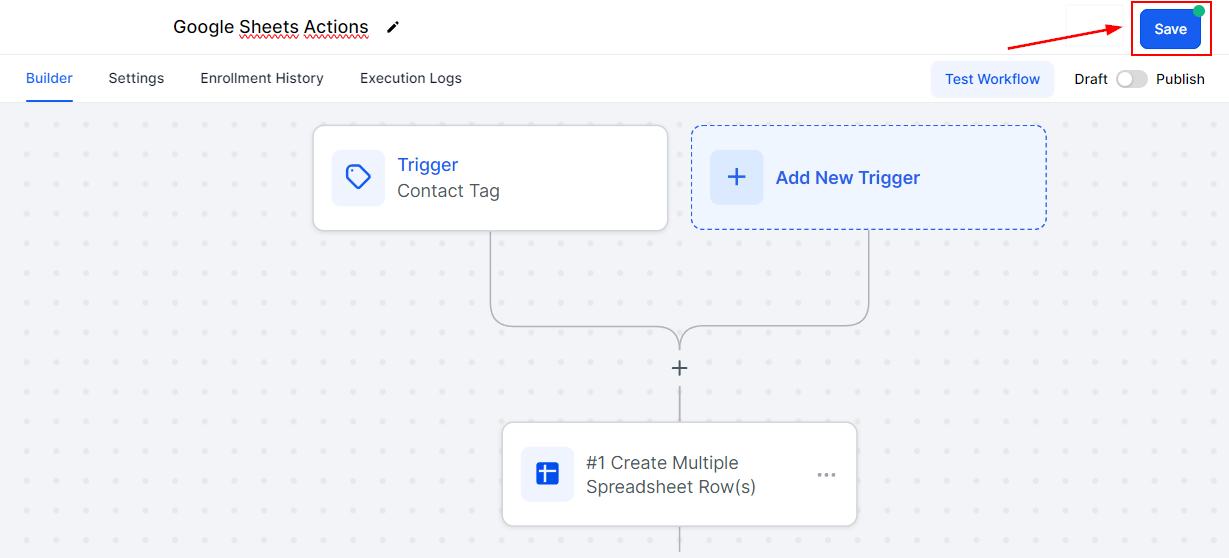
Save your workflow and you're done. This will send the data to your Google Sheets whenever the automation is triggered.
There you go. Enjoy all the organisational benefits of having your data in a spreadsheet, without the laborious task of moving it by hand.