The Dashboard is the first thing all users see when they log in, and because it gives an overview of everything in the account, it's a great place to leave notes for your team.
Whether it's a motivational quote or a goal to keep in mind, you can make sure everyone sees it by adding a Text Box element to your Dashboard.
To get started, enter editing mode by clicking the pencil icon.

Next, click Add Widget. This opens the left-side menu showing the available widgets and elements. Head to the Elements tab and select the Text Box element.

This creates a box for you to write in. You can format your text using the options at the top, which include the usual formatting tools: text alignment, letter colour, bulleted or numbered lists, and more.

Once you're happy with the text and formatting, click Save. The Text Box will be added to your Dashboard.

You can also move the text box by dragging it to a new position, or resize it by dragging the right-hand corner.
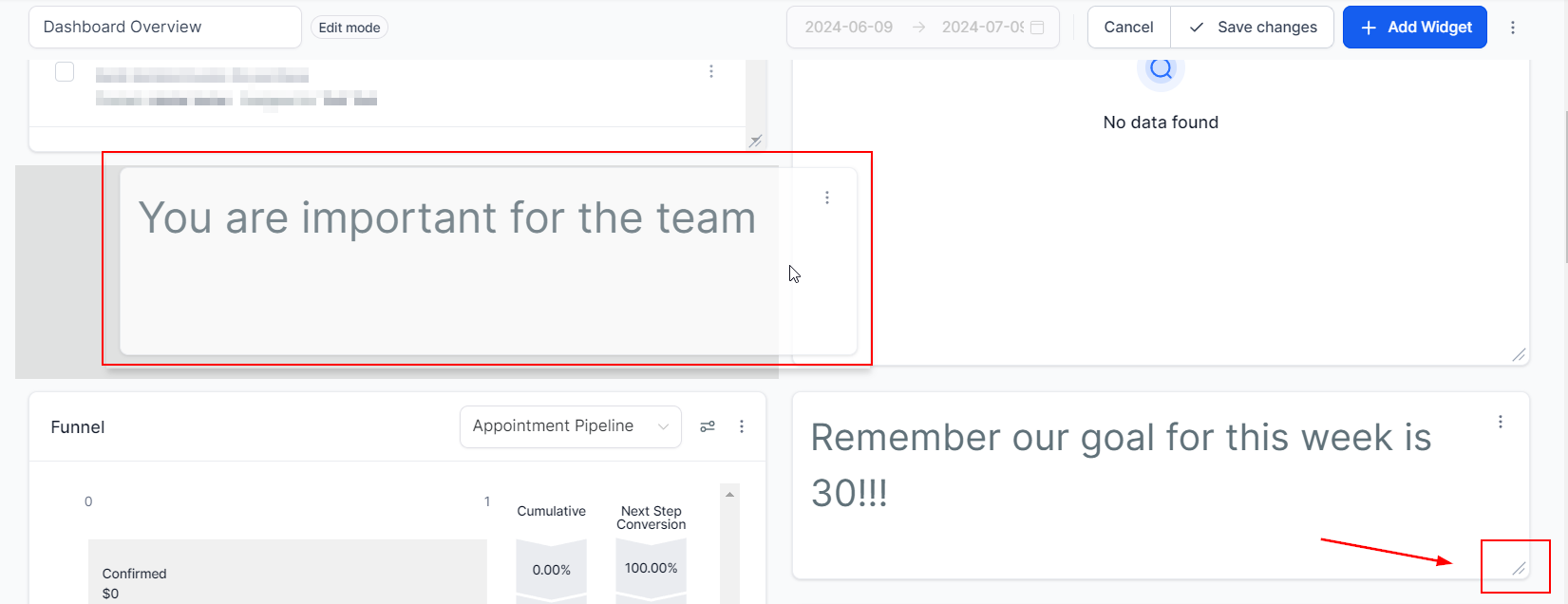
Once you're happy with the position and appearance, click Save Changes and you're done. If you'd like to customise your Dashboard further, take a look at the other articles in this section.