The first thing you see when you log into your account is the Dashboard. Its main purpose is to give you a quick overview of how everything is going, but it can feel a bit impersonal. You can add images to make it more dynamic and eye-catching.
Whether you want to add extra branding, hide easter eggs for your team, or include visual references, images let you make the dashboard your own. Here's how to do it.
To start, click the Pencil Icon in the top right corner. This opens the editing mode so you can rearrange your dashboard.

Now click Add Widget. This opens the left-side menu showing the available widgets and elements. Head to the Elements tab and select the Image element.

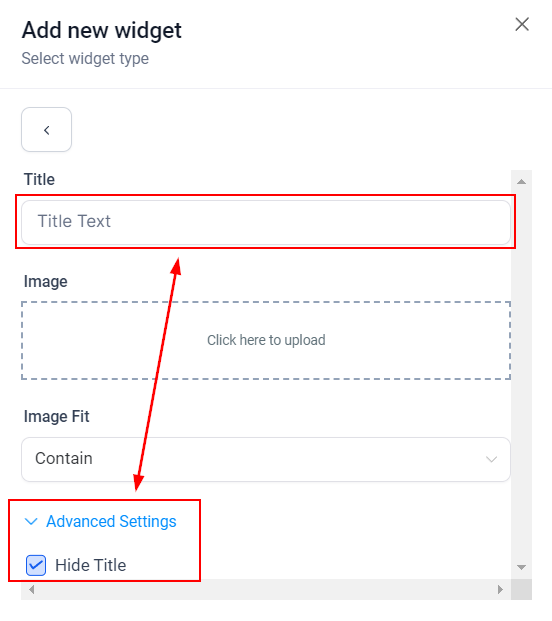
Start by adding a Title Text, which identifies your image on the dashboard. You can hide it if you prefer by opening advanced settings and ticking the box.
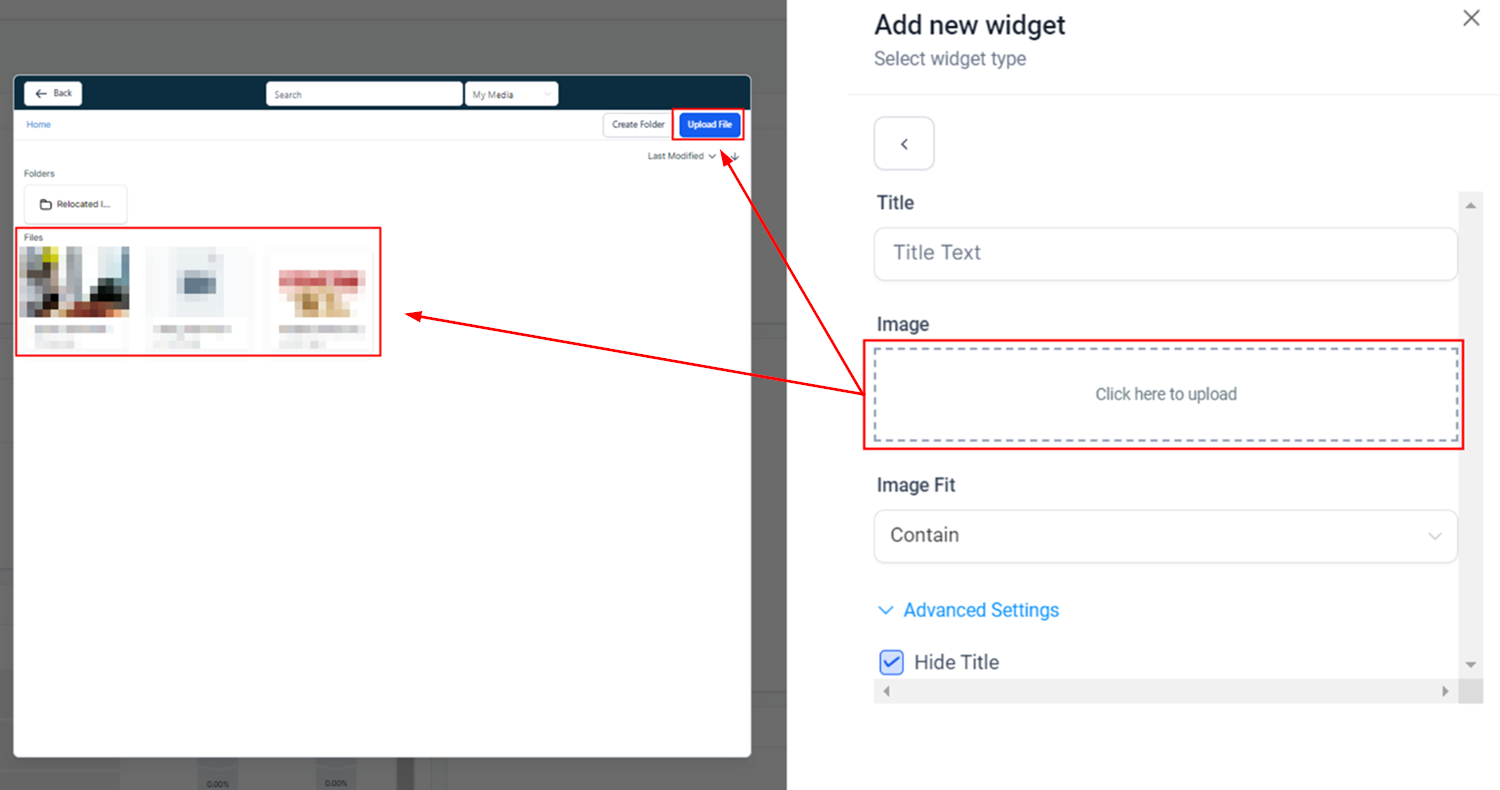
To add the image, click the lined box. This opens a small version of your media library where you can select or upload your image. Once you've found the one you want, double-click to add it.
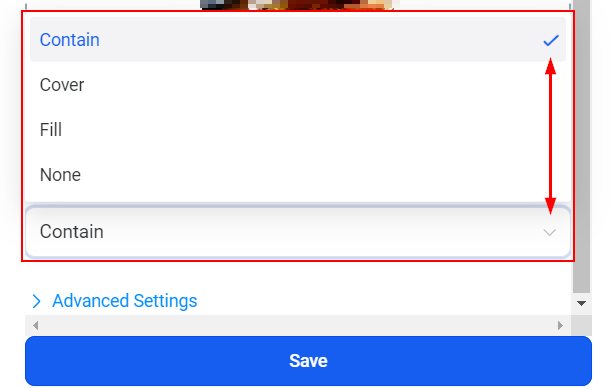
Choose how you want the Image Fit to be by clicking the drop-down menu. The fit setting controls how the image sits inside the image box.
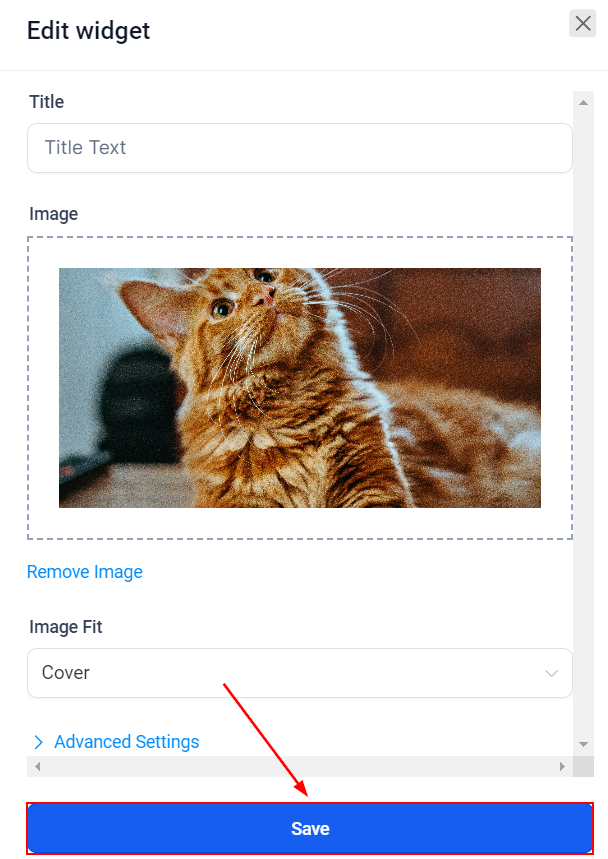
Once you're happy with it, click Save. This adds the image to your Dashboard.
You can also move the title by dragging it to a new position, or resize it by dragging the right corner.
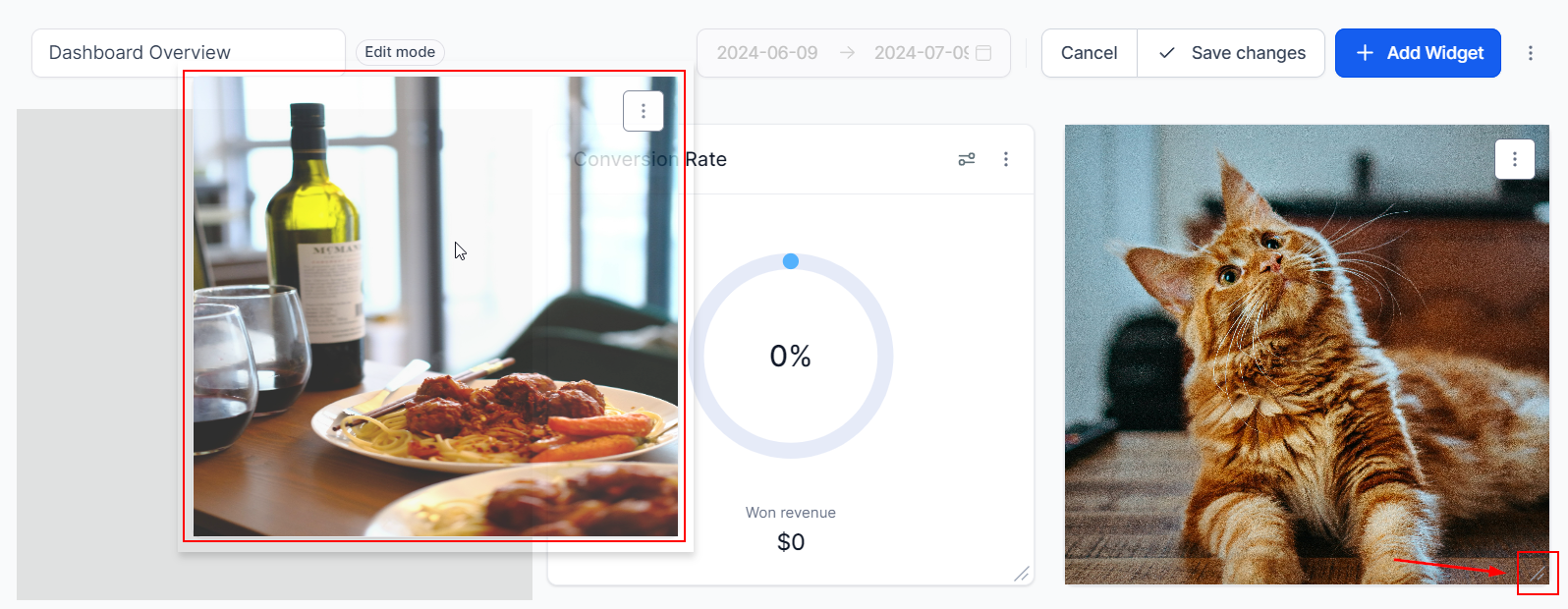
Once you're happy with the position and appearance, click Save Changes and you're done. If you'd like to customise your dashboard further, have a look at the other articles in this section.