Connect your Zoom account to your calendar bookings to keep virtual meeting management in one place. Once linked, scheduling online meetings is straightforward and all participants receive the details they need without extra manual steps.
Start by navigating to the Calendars section and opening Calendar Settings.

Head to the Connections tab within Calendar Settings.

Switch to the Video Conferencing tab, then click "Add New" to open the connection modal.

Connecting Your Zoom Account
To link your Zoom account, click the "Connect" button next to Zoom. This will open the Zoom sign-in page in a new window.

Sign In to Zoom
Enter your username and password on the Zoom sign-in page, then click "Sign In" to authenticate. Alternatively, you can sign in using Single Sign-On (SSO), Apple, Google, or Facebook by selecting the relevant icon.

Grant Permissions
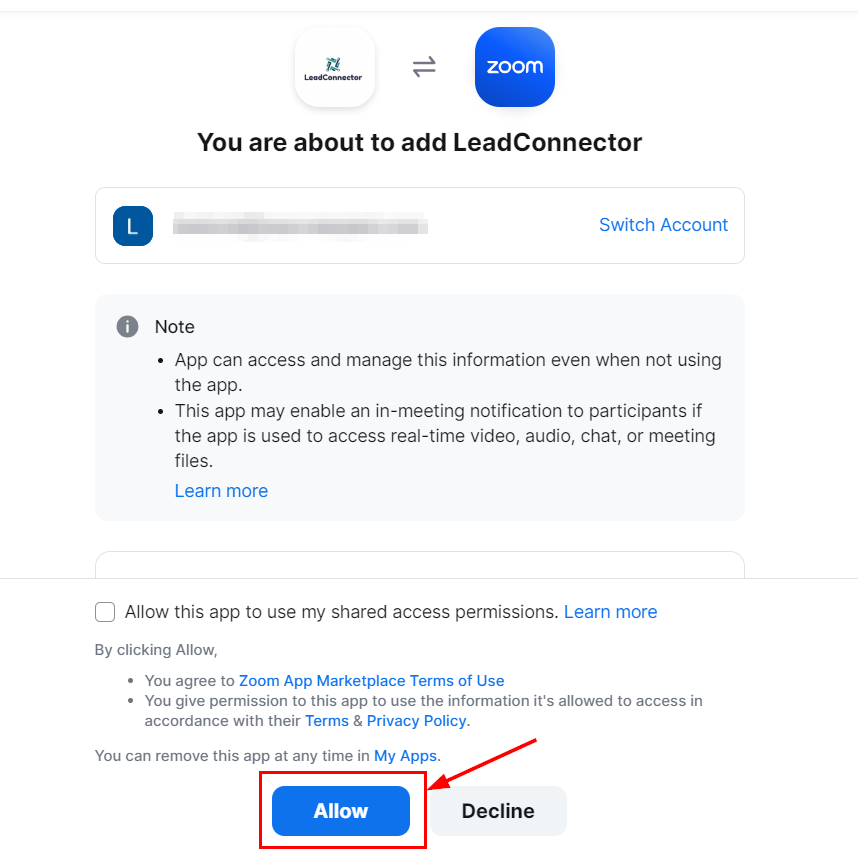
Review the required permissions and click "Allow" to finalise the integration, enabling NotLuck CRM to manage your Zoom account settings.
Zoom is now successfully integrated. You can disconnect it from the Video Conferencing tab by clicking the trash icon.
📌Note: You can only connect one Zoom account per user profile; however, multiple users can integrate the same Zoom account to host meetings.

With your Zoom account connected, you can keep meeting scheduling organised and save time on every virtual interaction.
📌Note: To use dynamic meeting links, be sure to select the connected account as the meeting location in the calendar you're configuring.