Having your business hours properly reflected in your calendar helps minimise confusion for your customers and maximise the accessibility of your appointments. Your personal availability might be different, though. Perhaps you offer different shifts to your team or need flexible scheduling. For those needs, you have the Availability tab inside your calendar settings.
The availability section gives you control over when you'd like to allow customers to schedule appointments on your personal calendar. To access it, go to Calendars inside your settings and click the My Availability tab.

Timezone
You can set the timezone for your personal calendar. If you work with clients across different regions, they don't need to use the same time zone. You'll stay on top of their calendar appointments using whichever timezone you've pre-set.

Working Days
By clicking any of these days of the week buttons, you can turn on or off which days you are available for meetings.

Working Hours
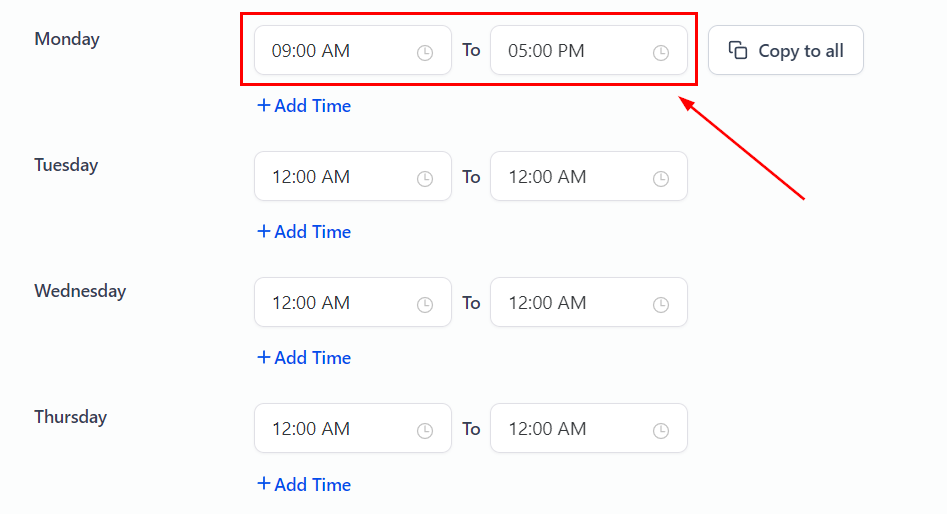
Here, you can set the working hours during which you can receive an appointment, limiting the times you're willing to take meetings.
Adding Working Hours
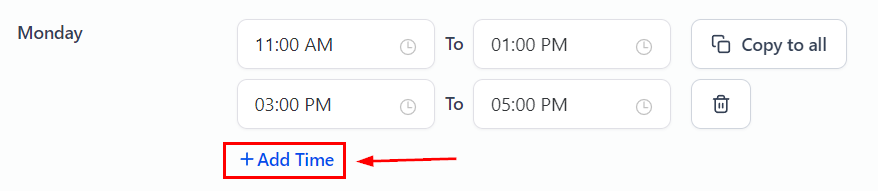
If you'd like to split your working hours into two or more parts, you can use this option. For example, for the first half you could accept appointments from 11:00 AM to 1:00 PM, then take a break and come back later; for the second half, you'd set the time as 3:00 PM to 5:00 PM, leaving a gap that won't be available for appointments.
Copy to all
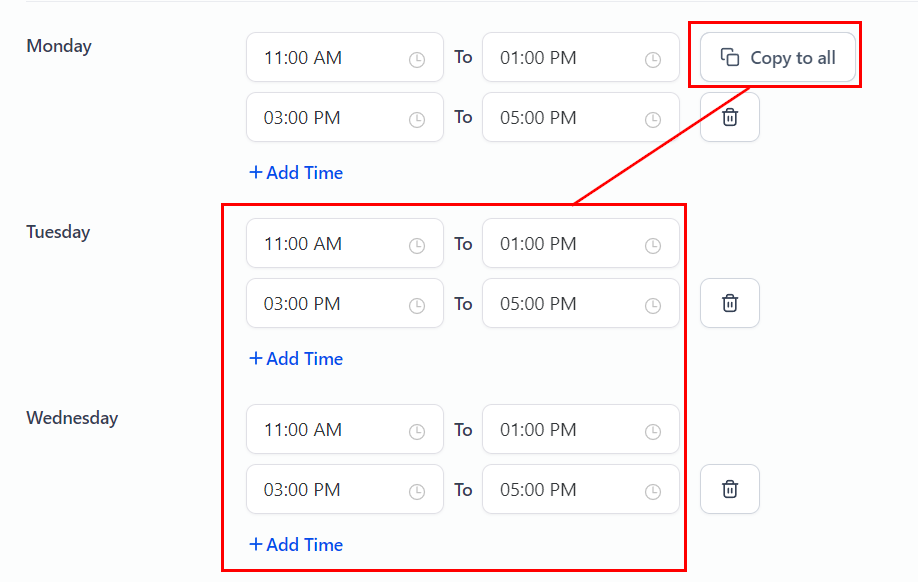
If your schedule is the same every day, once you've set the working hours for the first day of the week use the "Copy to all" option to apply them to other selected weekdays.
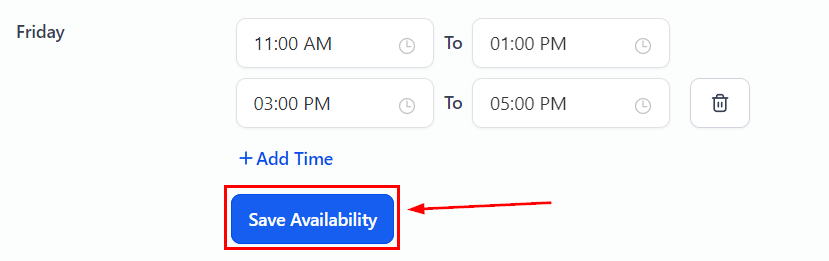
Click Save Availability once you're happy with the hours, and you're done!
You're all set to take on appointments and make sure that even if the rest of the team is available, a meeting won't land on your calendar during your break. Worth noting: this availability only affects the user who set it, not the calendars they're included in or other users.