WhatsApp is a great way to stay in touch with your clients in real time. You can automate messaging, response times are quick, and visibility is high. Think of it as a hybrid between SMS and Facebook Messenger.
One of the key benefits of the integration with the CRM is the ability to send bulk WhatsApp messages to your contacts, in much the same way as you'd send SMS messages. To get started, navigate to the Smart Lists tab within the Contacts section. From there, select the contacts you wish to message, either individually or by selecting all at the top of the list.

Once your contacts are selected, open the More dropdown menu and click the WhatsApp icon to open the message settings.

If you have exceeded your 24-hour tier Messaging Limit, you will see a warning as shown below.
Messaging limits govern the number of business-initiated conversations within a 24-hour rolling window and reduce the chance of being flagged by WhatsApp by improving compliance and phone number health. A "business-initiated conversation" refers to the first time you send a WhatsApp user a marketing, utility, or authentication template within those 24 hours.

You can upgrade your messaging limit from 250 to 1,000 conversations per 24 hours by completing the business verification process. If your business is approved, your messaging quality will be assessed to determine whether your activity justifies an increase in your messaging limit. Based on that evaluation, the request for a limit increase will either be approved or denied.
📌Note: Automatic scaling beyond 1,000 conversations occurs when your phone number consistently stays connected and maintains a high-quality rating.
Once you have resolved any issues with your Messaging Limit, assign a name to the action for reporting purposes.

Select the phone number you wish to send the messages from.

Next, select an approved template from the dropdown.

Enable the Fallback to SMS option to send a regular text message if the WhatsApp contact fails.

Selecting A Sending Mode
Send All at Once
Select the "Send All at Once" feature to send your WhatsApp message to all selected contacts immediately. This is the quickest option for getting a message out to your entire list at once.

Send at a Scheduled Time
Choose the "Send at a Scheduled Time" option to plan your WhatsApp message delivery for a specific date and time. This lets you time your messages precisely so they land when they're most likely to be seen.

Send in Drip Mode
The "Send in Drip Mode" feature lets you send WhatsApp messages to your contact list gradually, in smaller batches over a set period. This helps manage responses more effectively and avoids overwhelming your audience.

You can control the batch size, set intervals between batches, and schedule specific days and times for sending using these parameters:
- Start On: Select the exact date and time for message delivery to your contacts to begin.
- Batch Quantity: Specify the number of contacts to receive messages in each batch.
- Repeat After: Choose the interval between each batch, ranging from seconds to days.
- Send On: Select the specific days of the week to send each batch.
- Process Between Hours (Optional): Define the time frame during which the batches should be sent.

Send
Verify your configurations, then click Confirm to send your message.

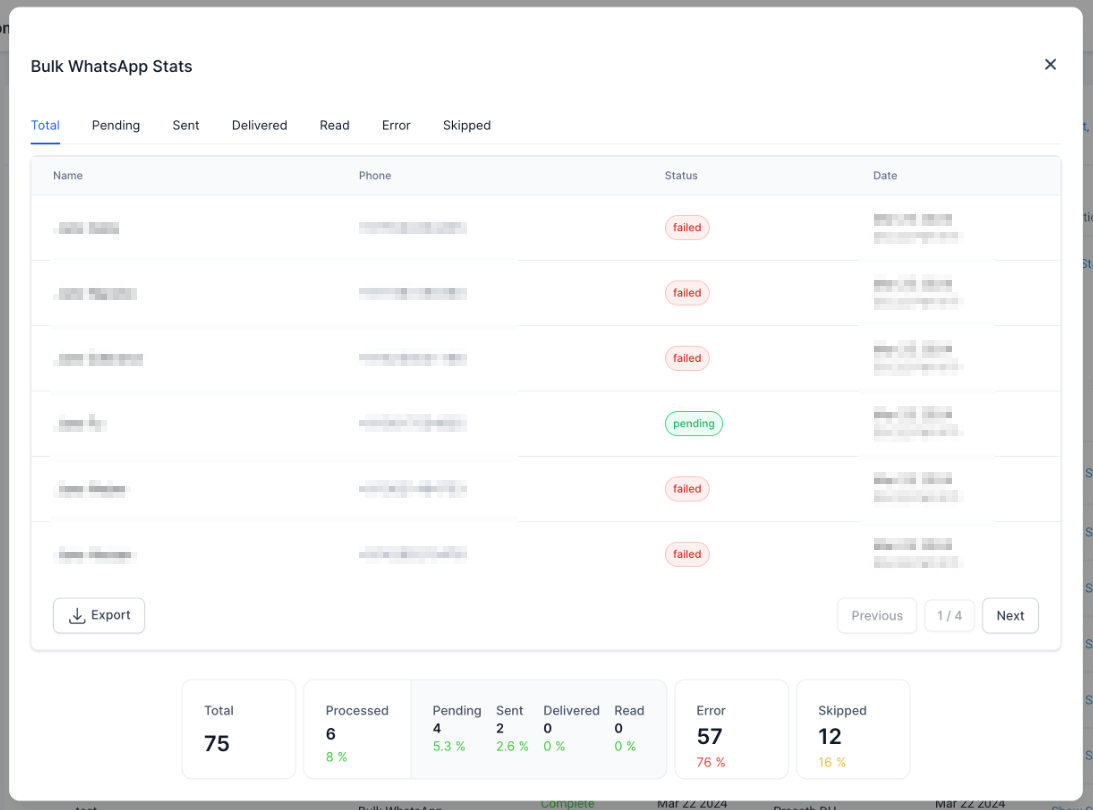
The system will send your WhatsApp message to groups of contacts in intervals until the entire list has been covered. You can track progress by navigating to the Bulk Actions tab and clicking on the action name for detailed information.
That's all there is to it. You're now ready to start sending bulk WhatsApp messages. If you'd like more information on setting up message templates, please refer to our article, "Using WhatsApp Media Templates."
📌Note: WhatsApp messaging operates within a 24-hour window, meaning the contact must have interacted with you within this period for you to initiate a response. If no interaction has occurred, the message will not be sent.