Managing contacts across multiple companies can be time-consuming. The Company Bulk Action streamlines this by letting you add, update, or remove contacts in just a few clicks. It helps you keep your records organised and maintain a clear picture of your client relationships. This guide walks you through each step.
How It Works
Go to the Smart Lists page in your dashboard and select the contacts you want to manage. Open the More dropdown menu and choose Manage Opportunities.

Input Details and Submit
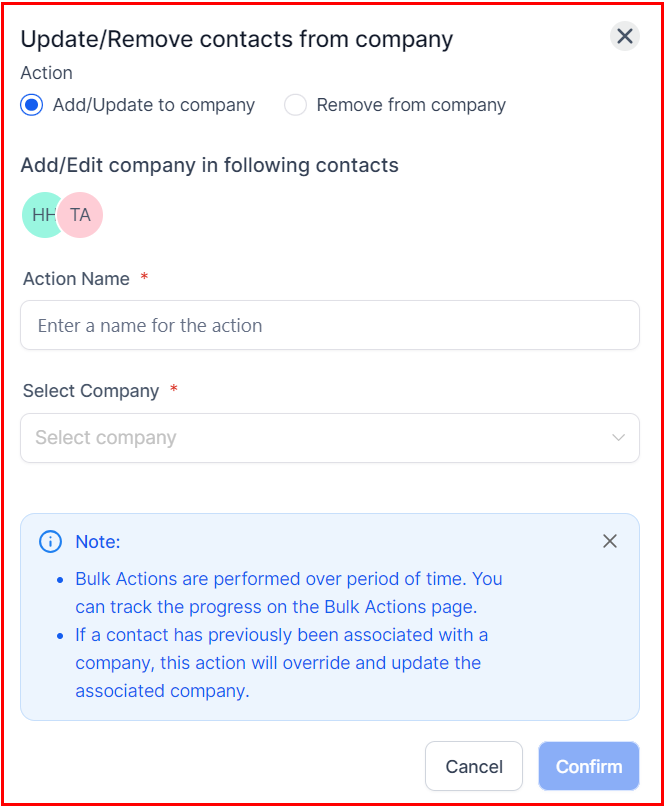
Choose whether to add or update a company record, or to remove the selected contacts from their associated companies. Give the action a name, and if you're adding a company, select the appropriate one. Once all required fields are filled in, click Confirm to finalise.
Check the Stats
Review the action's outcome under Contacts > Bulk Actions.

The Company Bulk Action makes it straightforward to manage contacts and keep your company records current. Once you're done, check the results under Contacts > Bulk Actions to confirm everything has been applied correctly. With this in place, keeping your data organised and actionable is much simpler.
For more on Companies, see the Companies Overview article.