Your e-commerce store is where customers browse and buy everything you offer. It's the front-facing side of your business.
When you create a store, the Product List is added automatically. Think of it as your virtual product shelf: it shows all the products you've created that have the Include in Online Store option toggled on.
How It Works
General
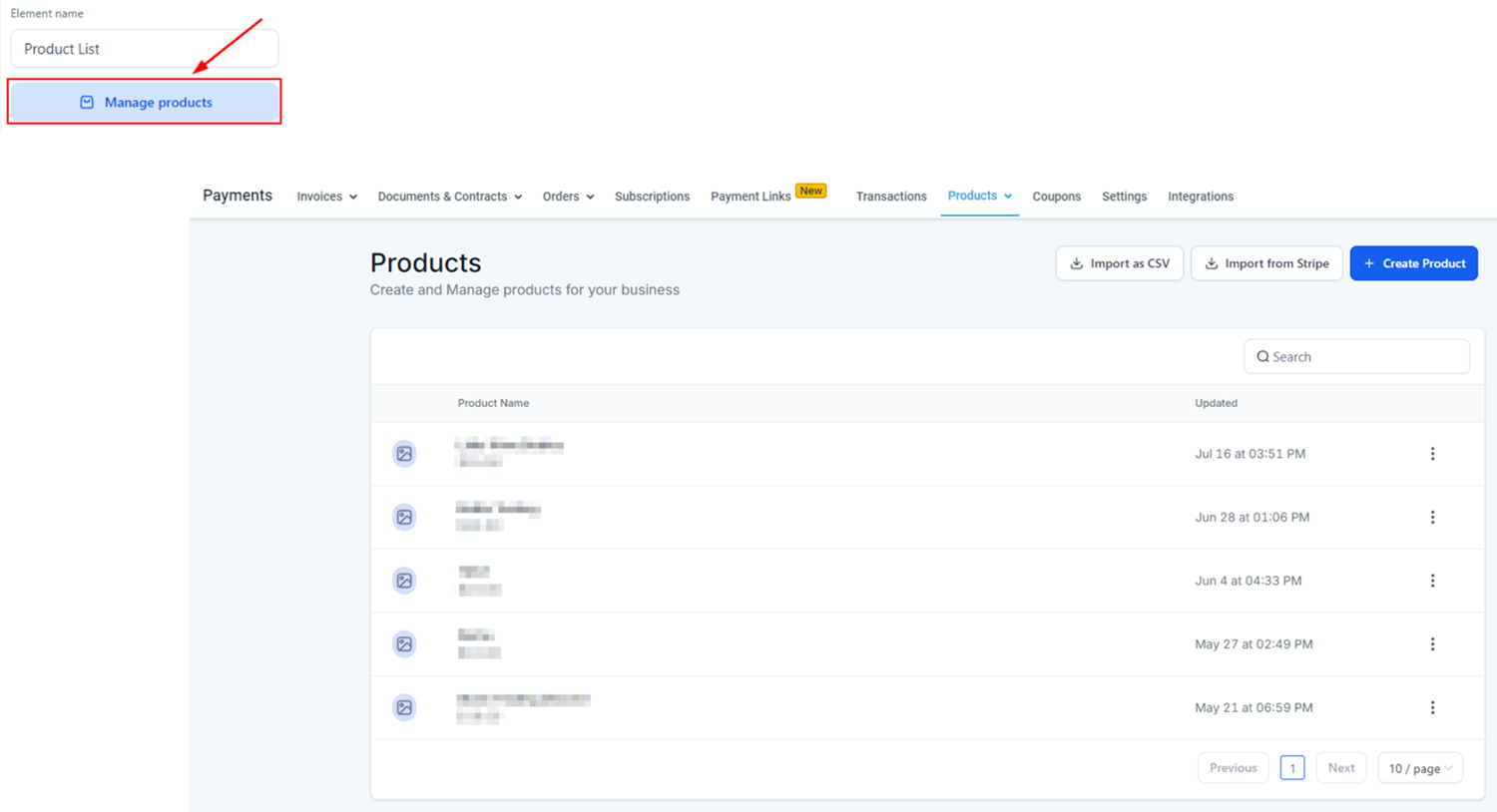
Open the settings on the right side. Click Manage Products and you'll be taken to the products tab to edit existing products or create new ones.
You can enable Filter and Sort to give clients more control over what they see.

Expand the Sort & Filter options to limit filtering to Availability or Price only, and set the default sort order.

Typography options let you control how the product text looks. You can use Google Fonts to personalise this.

With Layout Options, you can control how many products show per page (1) and the number of columns they are organised in (2).

📌Note: You can add up to 100 products per page.
The Reviews and Ratings section lets you choose whether to display the number of ratings for each product, as well as the detailed reviews. You can also customise the colour of the ratings text and stars here.

With Text Options, you can update the display labels to better match your brand.

Enable the wishlist for products so logged-in clients can save the products they love to check out at a later time.

Need to make any other colour adjustments? Scroll to the bottom of the General settings to make your changes.

Styles
Switch to the Styles tab to customise the Margin & Padding of the element for both desktop and mobile views.

You can also adjust the appearance of the border, including its colour, thickness, radius, and style.

Apply box shadows to fit your design needs. Click the plus button to apply a default outer shadow with preset values, which can be further customised with specific settings.

Changing the Visibility lets you make the element unavailable on desktop or mobile view.

Enter or paste your custom class code in the provided field and copy the CSS Selector if needed.

The Product List element is central to how your store sells. Being able to customise it means you can shape how your products are presented and make your store feel distinctly yours.
📌Important Notes
- If you don't see a product listed, verify that you've toggled Include in Online store.
- The default sort order is Date - Old to new
- All products will be shown without any filters by default.