Product Collections let you group your products for greater exposure, building more demand and interest in your brand. Bring that power into your store by adding the Collections List Element.
The element showcases your collections inside your store, catching the eye of anyone who visits. It also makes browsing easier for your customers and draws attention to less popular products in the same category.
Adding Collections List
This element can be added to any website that has store features enabled. To get started, edit a page for one of your websites.

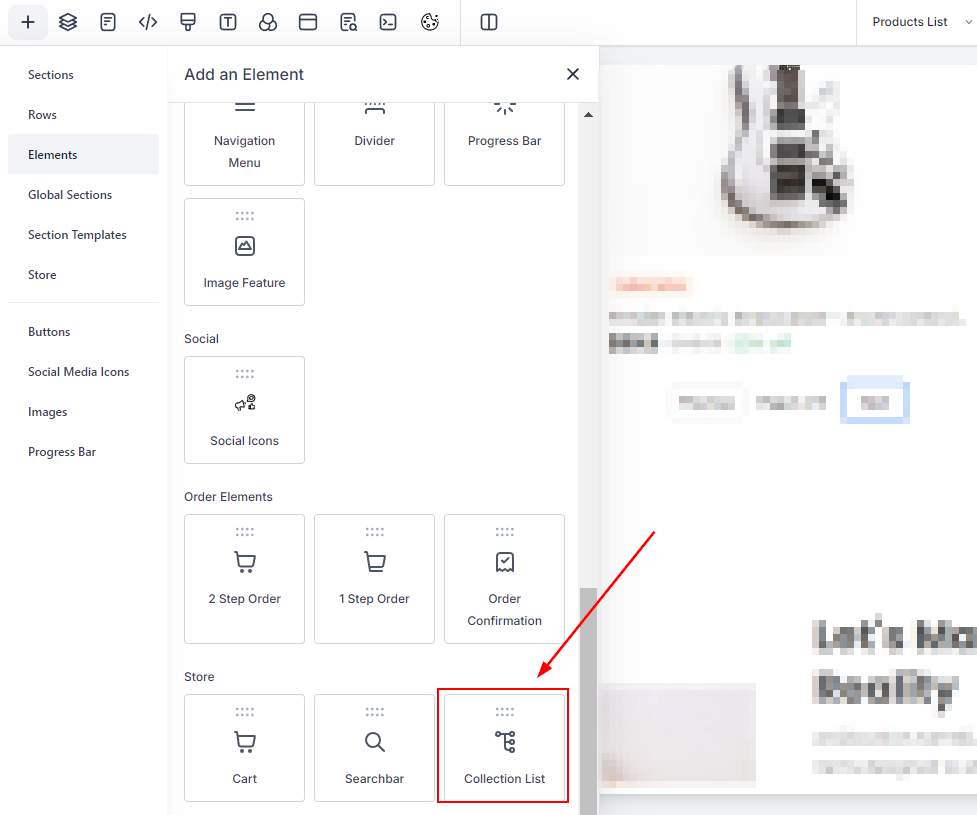
In the Website Editor, click the "+" sign to open the Elements Menu. The Collections list will be under Store.
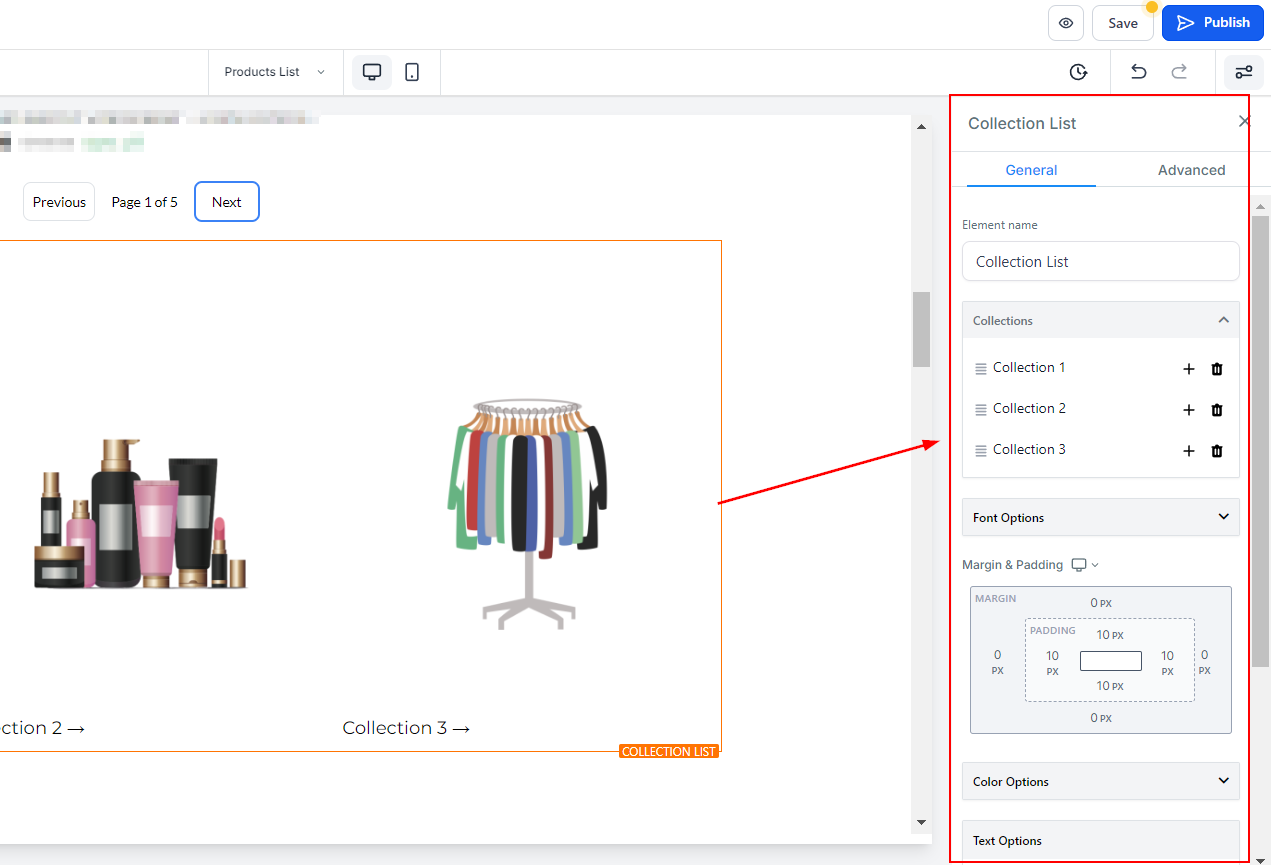
Once you've added the element, click it to open the settings panel on the right, where you can configure everything you need.
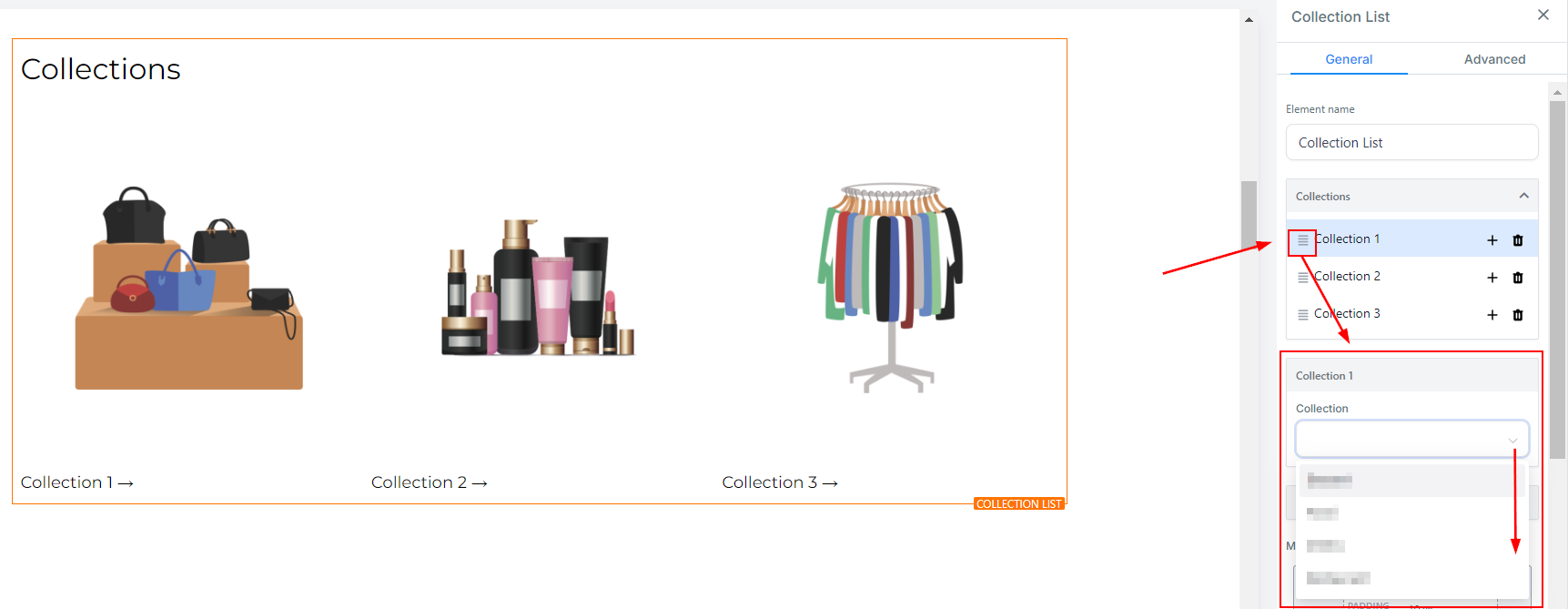
To choose which collections to display, click the lines icon next to the collection. A small drop-down menu will appear for you to select from your collections.
Alternatively, double-click items on the canvas to select or configure them directly.

When you add a collection, the image shown will be the one you've selected for the products; if no image is selected, the collection name will appear on a plain background instead.
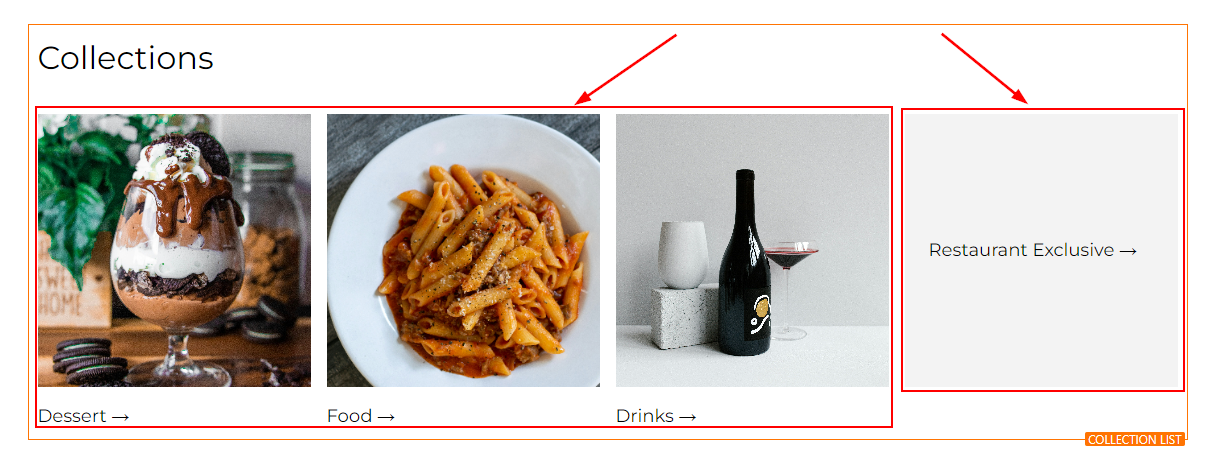
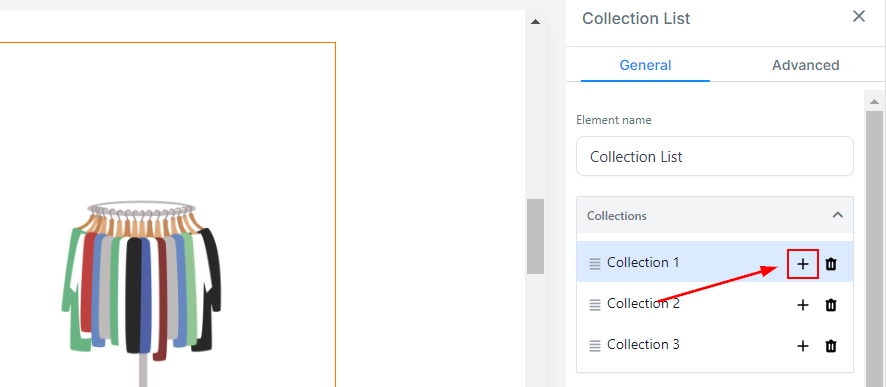
You can add more collections by clicking the + sign next to any collection.
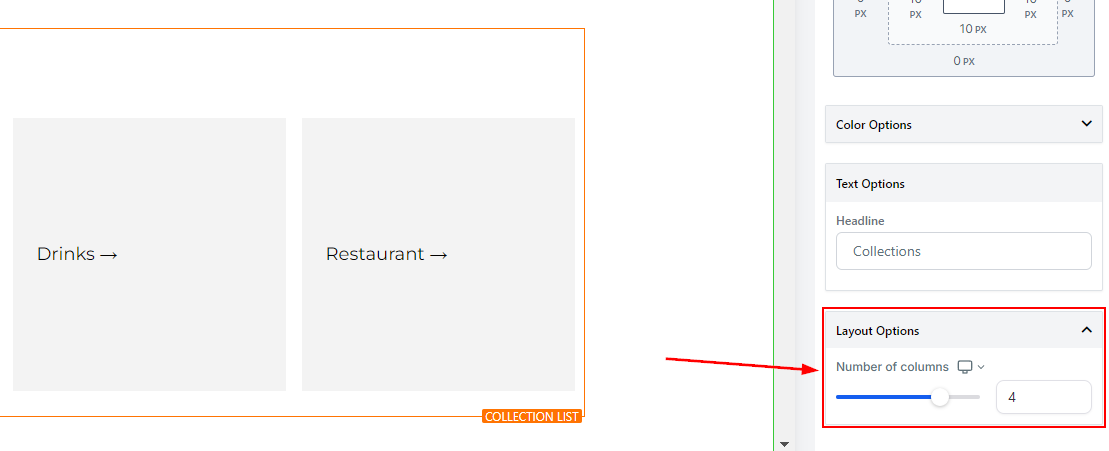
By default, 3 collections are shown per row on desktop and 2 on mobile. You can increase this under Layout Options, up to a maximum of 5 columns on desktop and 2 on mobile.
- Text Customisation: Fully customise the text used in various store components such as the Product List, Product Detail, and Upsell sections to enhance localisation and ensure brand consistency. These customisation options are organised under Text Customisation in the General settings, where you can edit text for specific sub-sections, including:
- Contact Details Section.
- Shipping Details Section
- Payment Section.
- Cart Summary Section.

When you're done, click Save to keep your changes and Publish to make them live.

That's it! Your Product Collections are ready to help drive more sales, simplifying the browsing experience and making it easier for customers to find exactly what they're looking for.
✍️Important Notes
- Some text elements, like error messages, may not appear in the builder preview but can still be customised.
- Text-related settings (e.g., Buttons and Form Options) are part of the Text Customisation section.