Your calendar is one of the best tools for organising your day and following up after appointments to keep customers happy. Calendly is one of the most popular scheduling platforms around, and it's easy to see why, with its clean interface and straightforward setup.
That said, Calendly's follow-up functionality is limited; you can't connect it to AI, and there's little room to create upsells. Linking Calendly to the CRM solves all of that.
How to Integrate Calendly?
Access your Calendar Settings by going to the Calendars section and clicking the gear icon.

Inside the Settings, go to the Connections Tab, and click on Add New.

Click the Connect button next to Calendly.

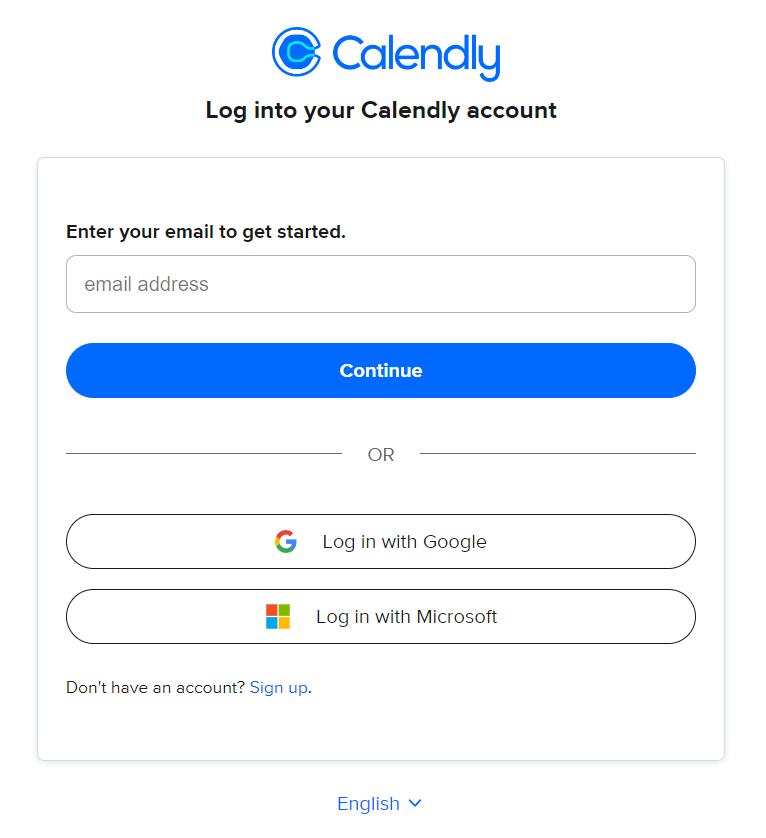
This will open a pop-up window where you can sign in to your Calendly account and grant the necessary access.
Once your account is connected, you'll need to select the calendars you'd like to import events from, accept the terms and conditions, and click Save to finish the setup.
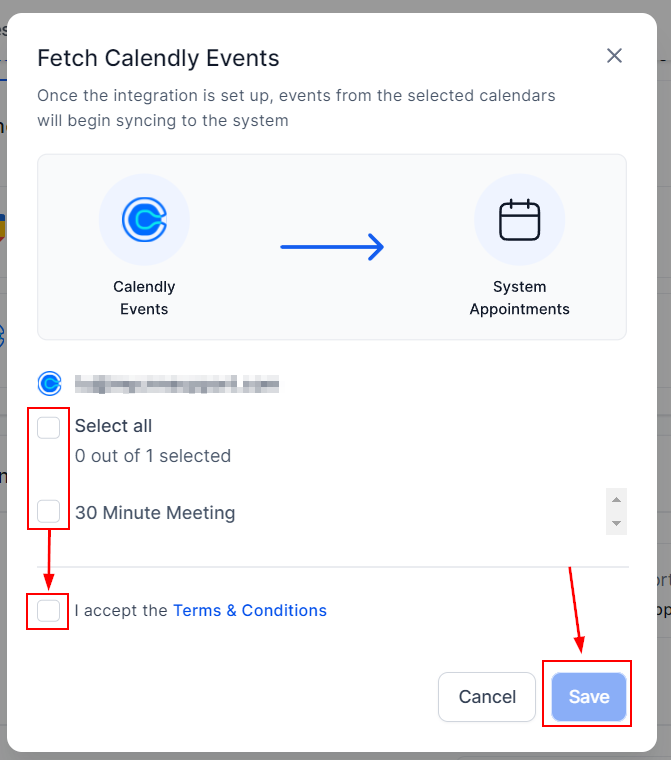
📌Note: Only events created in the selected calendars after the integration was set up will be imported into the system.
When a phone number field is present in the Calendly form, a mapping screen is displayed, allowing you to select either a form field or the location phone field, if available.
This feature ensures contact phone numbers are consistently synced for phone-based meetings, eliminates the need for manual copying from Calendly, and gives you control when multiple phone number sources are available.

📌Note: For shared calendars, any update to the phone number sync option made by one user will apply to all users associated with that calendar.
Once that's done, your CRM and Calendly are connected, so you can keep using Calendly for scheduling while taking advantage of the CRM's follow-up tools and automated actions.
✍Important to Note
Connecting Calendly is a one-way integration; events created in the CRM won't sync back to Calendly, and you can't edit Calendly events from within the CRM. Even when your Calendly account is connected, appointments created before the connection date won't copy over, and syncing will only happen for the calendars you've selected.
If you remove a calendar from the connection, events from that calendar won't be synced anymore. If you decide to reconnect it later, only events created after reconnecting will be synced. Any events scheduled while the calendar was disconnected won't be included.