The cookie consent tool lets you get visitor consent before collecting any personal data, helping you stay compliant with data protection regulations. It presents visitors with clear options to accept or manage their cookie preferences before any data is collected.
Using it means your website or funnel meets legal requirements, and it gives visitors transparency and control over their personal information, which builds trust and creates a better experience for everyone.
How to Use the Cookie Consent Feature
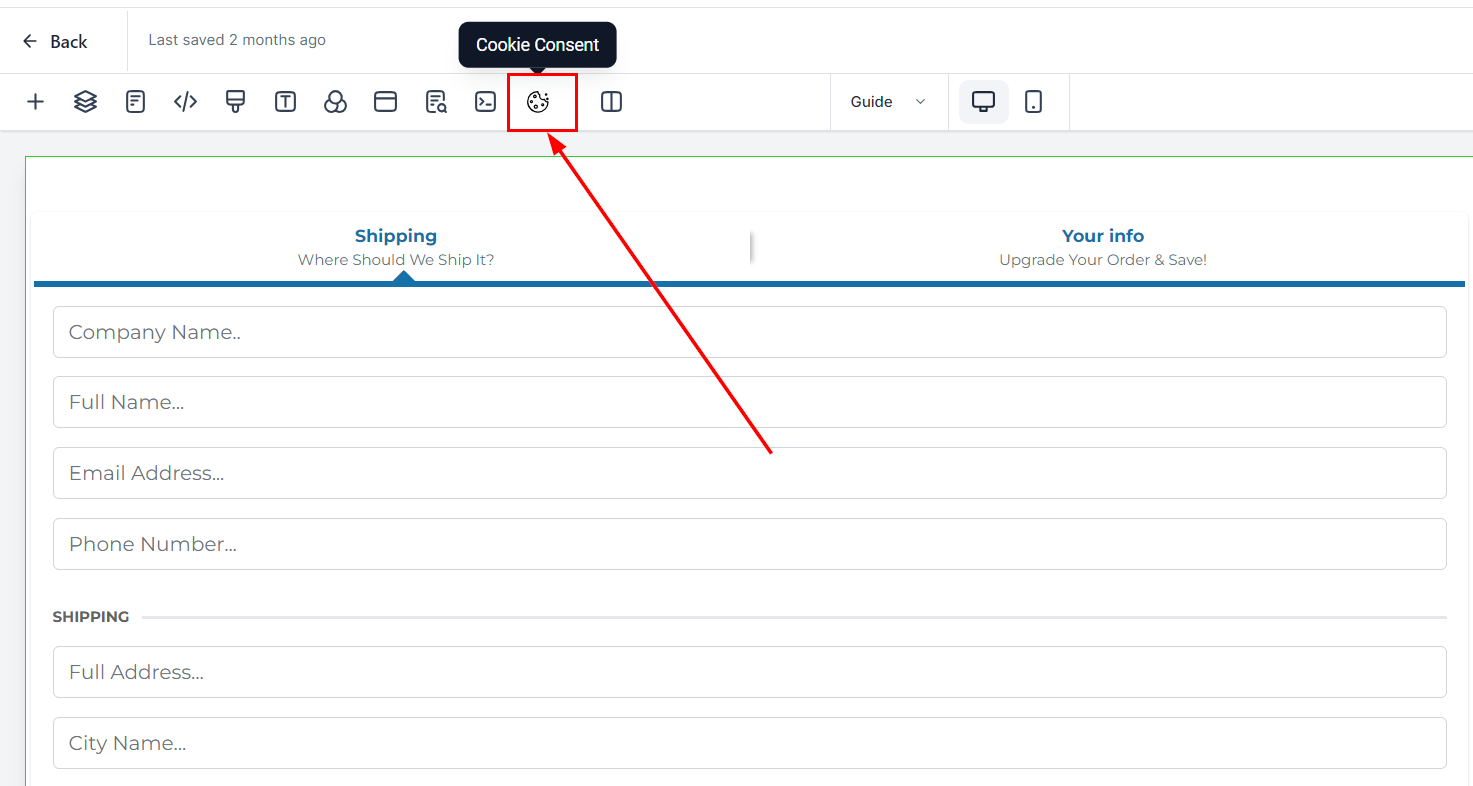
Access the funnel or website builder interface and click the cookie icon located in the action header bar.
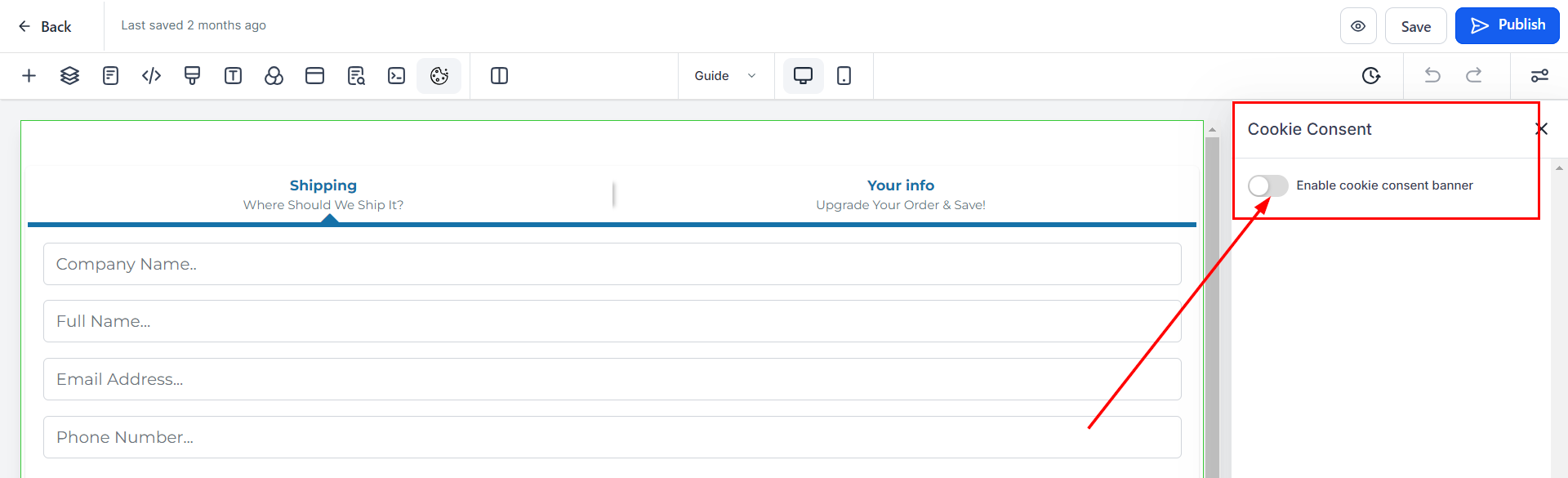
Toggle the switch on the cookie consent sidebar on the right.
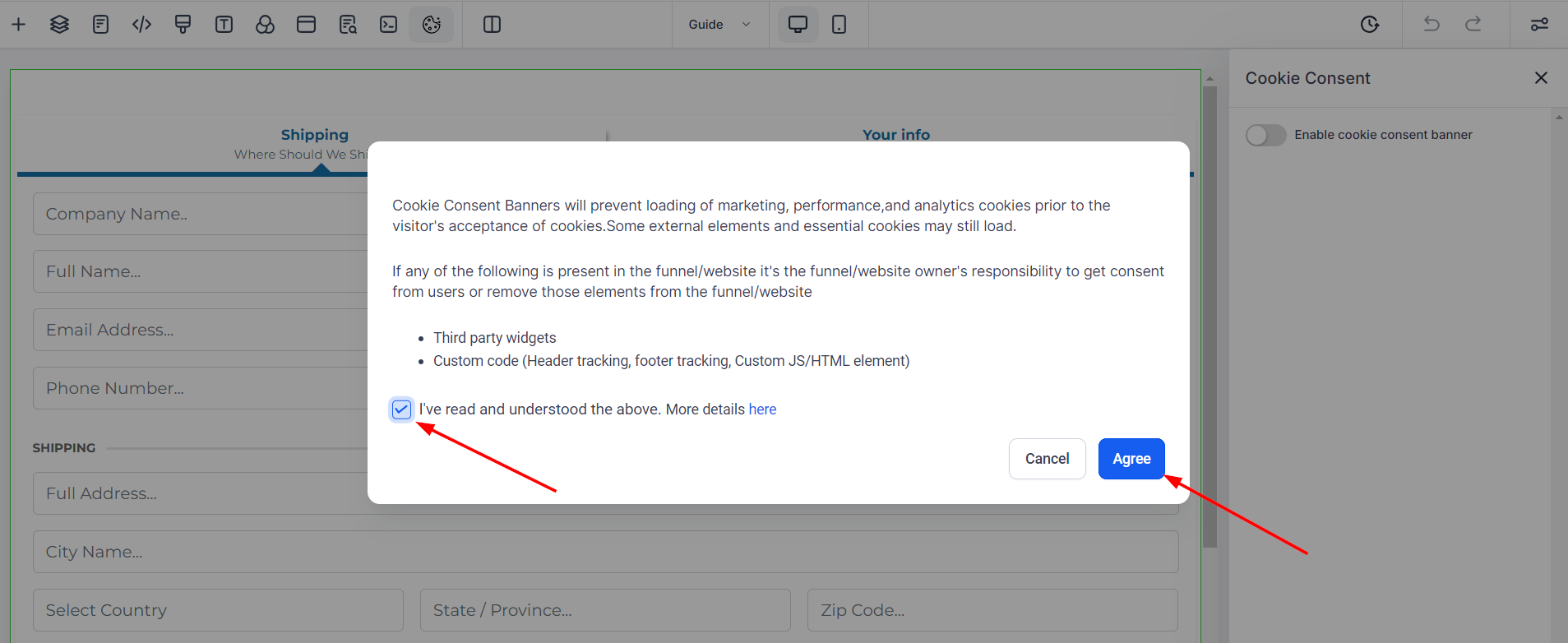
Review and accept the Terms and Conditions, then click "Agree."
Customise the Banner
Personalise the appearance of the cookie consent banner to match your funnel or website's branding.
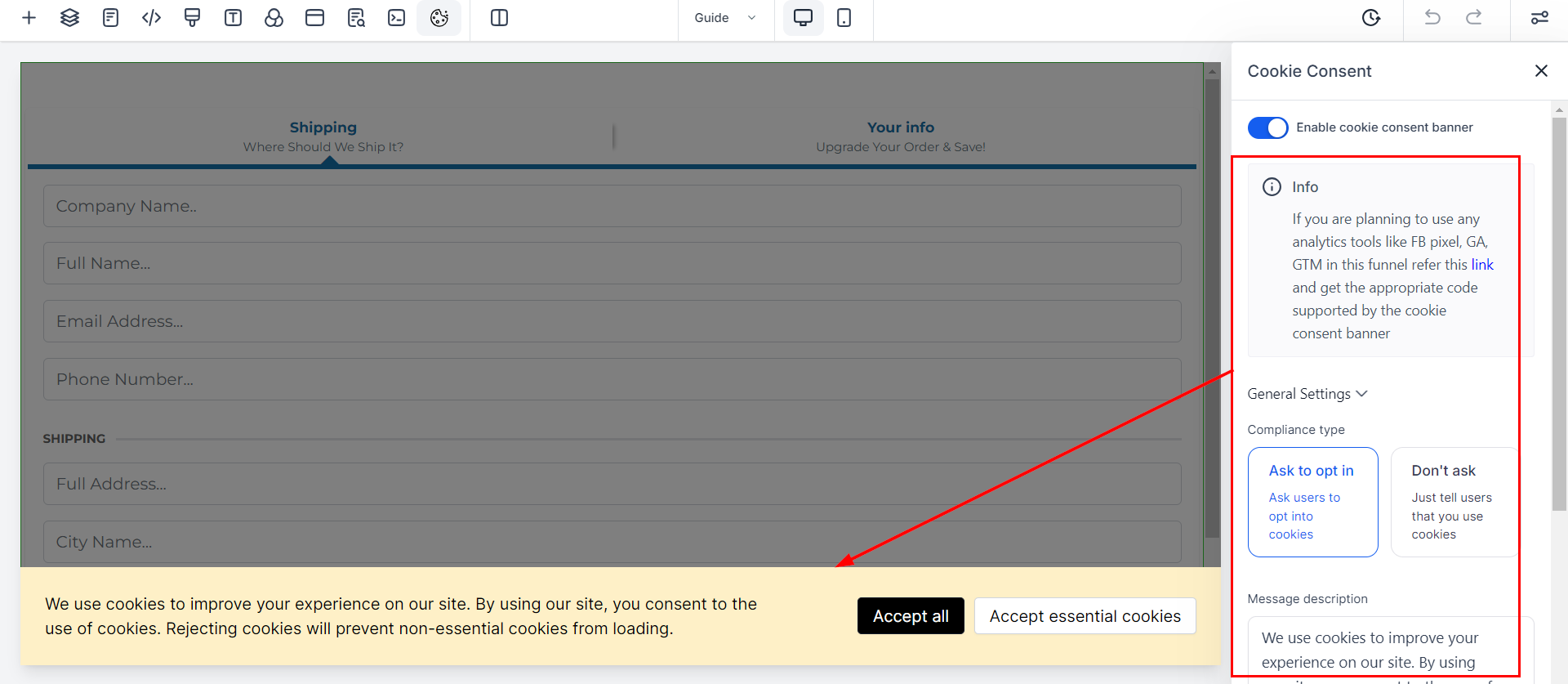
If you want to remain compliant with GDPR, CCPA, and other privacy laws, select Ask to opt in as your compliance type.

You can customise the regions where the cookies banner is shown inside the Region Settings section. Select between Worldwide (for all viewers), EU & UK, or Select Countries to manually enter them.

Navigate to the Cookie List to add the cookies to categories, such as Essential, for increased usability.

After selecting a Predefined Category, click + Add Cookie to include it in that section.

Finalise your changes by saving and/or publishing the updated settings.

Once you've followed the steps above, you can provide a seamless experience by integrating cookies tailored to your specific business requirements. This helps you improve the user experience, maintain transparency, and stay compliant with data protection regulations.
FAQs, Troubleshooting, and Tips
Q: How do I know if my cookie consent banner is set up correctly?
A: Verify that the banner appears on your site or funnel and that it includes options for users to accept or manage cookie settings.
Q: Can I customise the cookie categories displayed on the banner?
A: Yes, you can customise the cookie categories and settings to align with your specific business needs.
Q: What should I do if I encounter issues with the cookie consent banner not appearing?
A: Ensure that the feature is activated in the builder interface and that all customisation settings are correctly applied. If problems persist, check for conflicts with other scripts or contact support.
Issue: The cookie consent banner does not display.
Solution: Confirm that you have activated the feature and that the banner is not being blocked by browser extensions or security settings.
Issue: Customisation options are not applying.
Solution: Ensure you have saved or published your changes after customising the banner. Clear your browser cache and refresh the page to see the updates.
When Using Cookie Consent with Marketing Tools
If you plan to use marketing tools such as:
- Facebook Pixel
- Google Analytics
- Google Tag Manager
They must be whitelisted in the advanced settings of the cookie banner, as they are not supported directly. The responsibility for adding these tools to the cookie policy and obtaining user consent rests with the owner of the funnel or website.