Getting your Business Profile set up properly means your CRM environment will run smoothly and work the way your business needs it to. Understanding these settings lets you tailor your CRM to fit how you actually operate and get the most out of it.
By default, the Business Profile is the first page you'll see when you go to Settings. Just click the Settings button from your account dashboard and you'll land here.
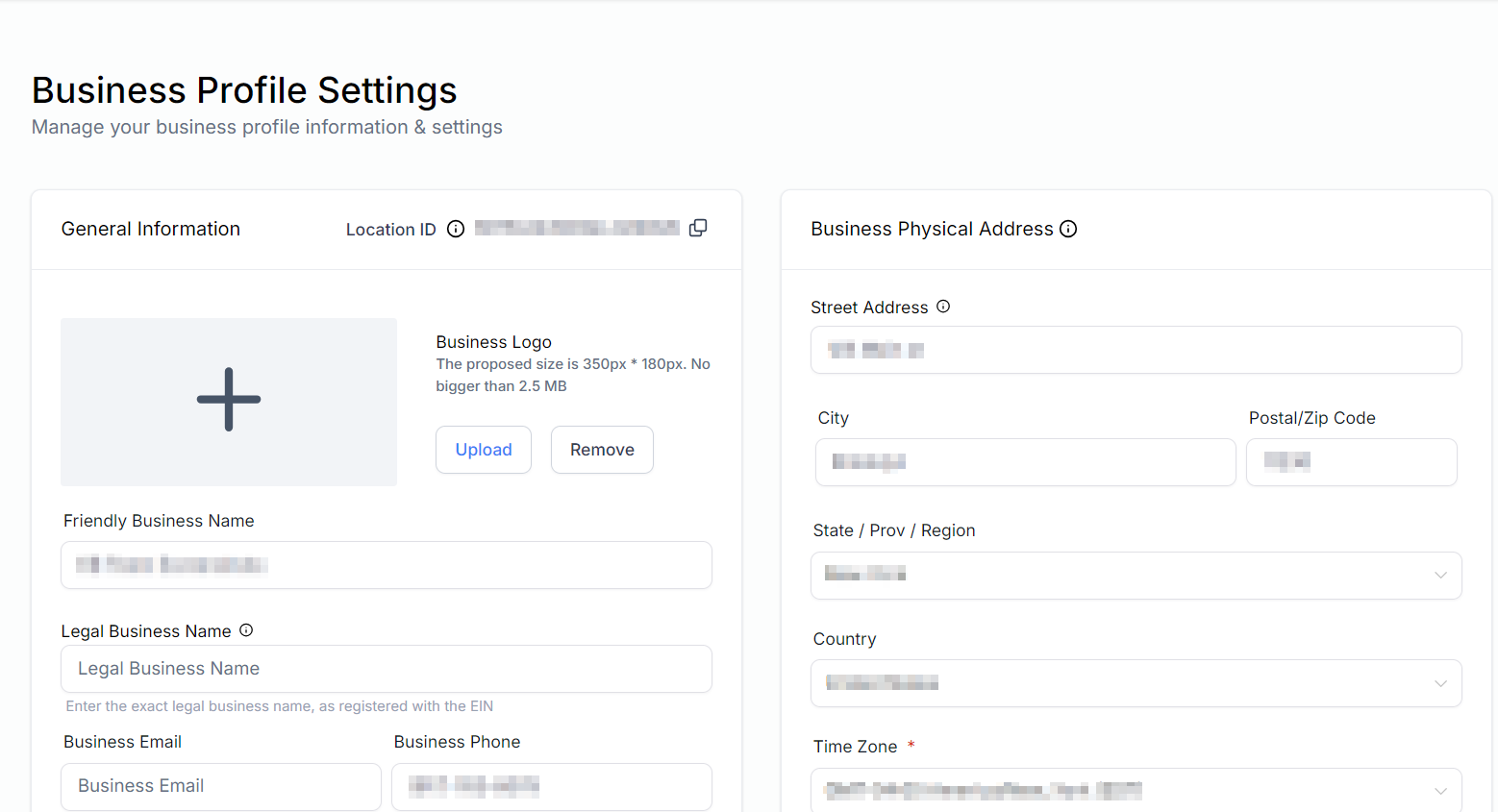
General Information
Fill in accurate information and configure these settings properly so that any Custom Fields or Trigger Links linked to this sub-account correctly show your business details.
- Location ID: This shows your account ID. Click the icon beside it to copy the ID.
- Business Logo: Update, change, or remove your company logo here. The recommended dimensions are 350px by 180px, with a maximum file size of 2.5 MB.
- Friendly Business Name: This name is used for your account when referencing the Custom Field "Account -> Name" in messaging, workflows, and other areas.
- Legal Business Name: Enter your legal business name exactly as it appears on legal documents like your business licence and registration paperwork. This is used for future compliance registrations.
- Business Email: Enter the email address you want to use for your account. This is used when applying the Custom Field "Account -> Email" in messages, emails, workflows, and other sections that support Custom Fields.
- Business Phone: Enter the phone number you want to use for your account. This is used when applying the Custom Field "Account -> Phone" in messages, emails, workflows, and other sections that support Custom Fields.
- Branded Domain: Create a "branded domain" by connecting it to a sub-domain through your hosting provider. This branded domain will serve as the URL for Trigger Links, Calendars, Forms, Surveys, and more.
- Business Website: Enter the website URL you want to use for your account. This is used when applying the Custom Field "Account -> Website" in messages, emails, workflows, and other sections that support Custom Fields.
- Business Niche: Assign a business niche to your account by selecting the most appropriate option from the dropdown menu. If your business targets multiple niches, choose the one that best represents your primary target market.
- Business Currency: Select a currency to override the business address-based currency. This becomes the default across all touchpoints, such as Invoices, Products, and the Dashboard.
- API Key: Use the API Key to connect with Zapier and other applications that need one for exchanging information. Click the "copy" icon to copy your API Key, and click the "Refresh" icon to generate a new one.

Once you've finished updating General Information, click the Update Information button to save your changes.
Business Physical Address
This information helps you verify your business for certain features that need validation, and it lets you use Custom Fields and Custom Values in messages, social posts, email campaigns, websites, and funnels.
- Street Address: Enter the precise street address as recorded in your business registration.
- City: Input the city that corresponds to the street address.
- Postal / Zip Code: Provide the postal or zip code linked to your business location.
- State / Prov / Region: Specify the state, province, or region for your business.
- Country: Select the country where your business is registered.
- Time Zone: Select your preferred time zone from the dropdown menu. Automated events within campaigns use this to determine when to send messages. Depending on the feature, such as workflows or email campaigns, you may be able to override this default time zone setting.
- Platform Language: Select the language in which your account is displayed from the dropdown menu.
- Outbound Communication Language for Custom Values: Choosing the appropriate language here ensures that all Custom Fields and Custom Values display correctly in the selected language when used in messages, websites, funnels, or anywhere else in the platform.

Once you've finished this section, click the Update button to save your changes.
Business Information
Your registration type and number (such as EIN, CCN, VAT) and your regions of operation matter. Documenting and registering your business properly can significantly impact your approval status when you apply to send SMS messages.
- Business Type: Select the type of business entity you've established from the available options in the drop-down menu. Choose from Co-operative, Corporation, Limited Liability Company (LLC), Sole Proprietorship, Non-profit Corporation, or Partnership, depending on your business structure.
- Business Industry: Select the industry category your company primarily serves.
- Business Registration ID Type: Choose the type of identification you received for your business registration.
- Business Registration Number: Enter your company's registration number here. If your business is not yet registered, tick the "My business is Not registered" box instead.
- Business Regions of Operation: Select the region where your company is located. You can select more than one option if your company has branches in multiple locations.

Once you've finished updating Business Information, click the Update Information button to save your changes.
Authorized Representative
To designate an Authorized Representative in your system, enter the individual's first and last name, email address, job position within your company, and phone number, including the country code.

Click the "Update Information" button to save any changes after confirming the details.
General Settings
These settings address compliance requirements and enable enhanced personalisation features.
- Merge Facebook Contacts By Name: When enabled, incoming messages from Facebook are merged with existing contacts if the names match exactly. Note that name matching is case-sensitive.
- Disable Contact Time Zone: If contact time zones are disabled, all appointments and time-based tools use the time zone selected in the Business Physical Address section.
- Bot Detection Preventing Statistics Increment and Automation Execution: This feature prevents bots from inflating email engagement metrics and triggering automation by blocking the increment of open and click counters and stopping any automation events caused by bot interactions.
- Verify Email Address when first email is sent to a new contact: This feature attempts to verify an email address when sending the first email to a contact. If the email address is marked as "Invalid," the email won't be sent, and you'll need to verify the email address before you can send future emails to that contact.
- Make Email compliant by adding an Unsubscribe link in your email: This feature lets recipients opt out of receiving emails related to your products or services. If you disable this option, make sure an unsubscribe link is included in all system-generated emails. Click the "Customise" button to customise your default unsubscribe link.

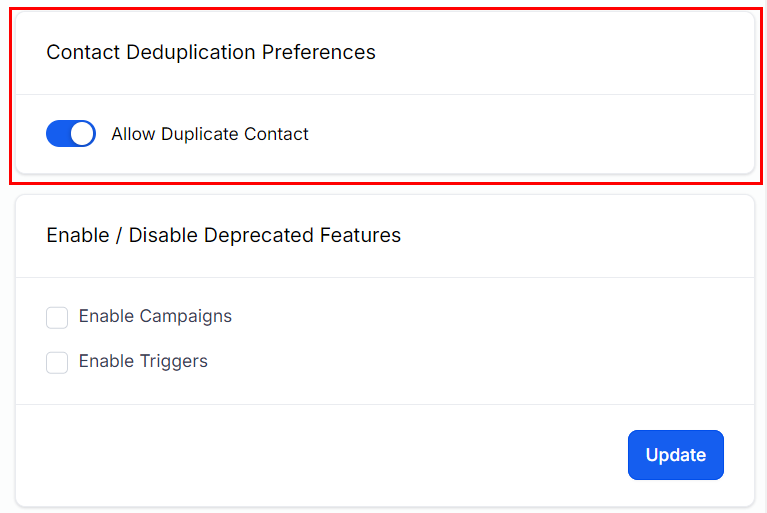
Contact Deduplication Preferences
This setting controls how your account handles duplicate contacts. Toggle this setting on to allow duplicate contacts, or toggle it off to disallow them.
When the setting is toggled off, you can customise how duplicates are identified. You can prioritise email addresses or phone numbers as the primary criterion and, if desired, add a secondary factor for further confirmation.
Deprecated Features
Enable or disable features that have been phased out in this section. Currently, the features available are Campaigns and Triggers since they've been replaced by Workflows.
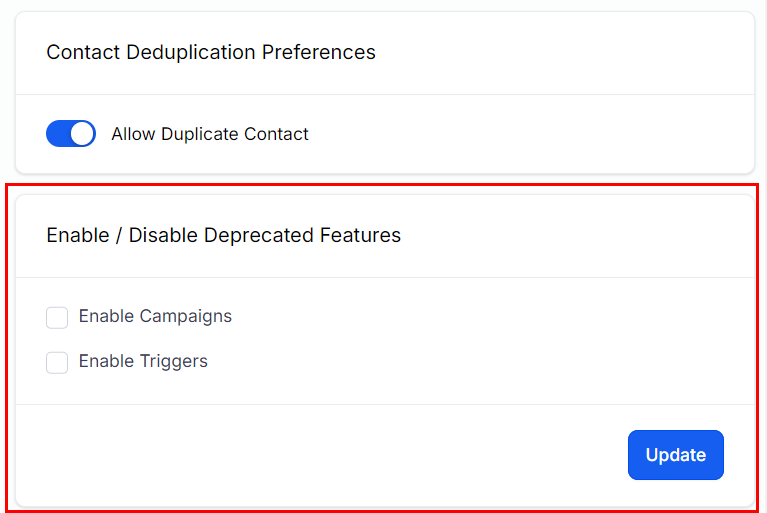
Click the Update button after enabling or disabling any of these features.
And there you have it, your guide to getting the most from your Business Profile! With your Business Profile sorted, you're ready to personalise your CRM in a way that keeps everything running smoothly and aligned with your business goals.