The Business Card Scanner lets you scan business cards to create new contacts straight from the mobile app. It pulls the details off the card automatically, so you spend less time typing and reduce the chance of errors.
How It Works
Open the mobile app and choose where you want to start scanning. You can begin from either the Contacts page or the Contact Creation screen.
Contacts Page
Open the mobile app and log in with your account credentials. From the main dashboard, access the apps section.

Next, click the Book icon to access all the Contacts within your CRM.

Tap on the "+" icon, and select "Scan Business Card."

Contact Creation Screen
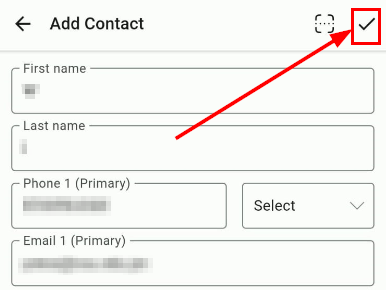
Tap on the scan icon at the top right of the contact creation screen.

Position the Business Card
Once the scanner is open, position the business card within the rectangular box. The device will automatically extract the details from the card.
Edit Details
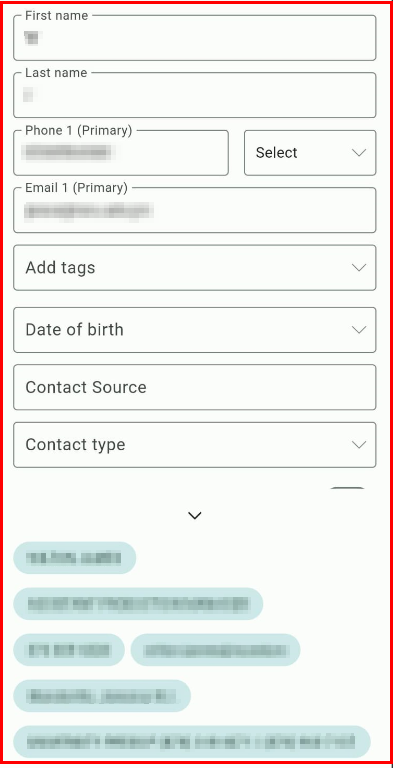
After the scan is complete, you can edit the details using the chips at the bottom or by typing manually with the keyboard.
Save the Contact
Once all the details are captured accurately, hit save to create the contact.
📌 Please Note: This feature is only available on iOS or Android devices with Version 3.74 or later.
Download the latest version of the app to start using the Business Card Scanner.