If you need to transfer specific contacts to an outside system or marketing campaign, you can download your contact list as a CSV file. This is called Exporting, and you can do it from the Smart Lists tab in the Contacts section.
Exporting Contacts
To start, select the contacts you want to download.

Select the Export action.

Confirm the action to begin the download.

Your contacts will be downloaded as a CSV spreadsheet to your device. It may take a moment to generate, but the export handles everything automatically so you don't have to enter data manually.
Exported Contacts
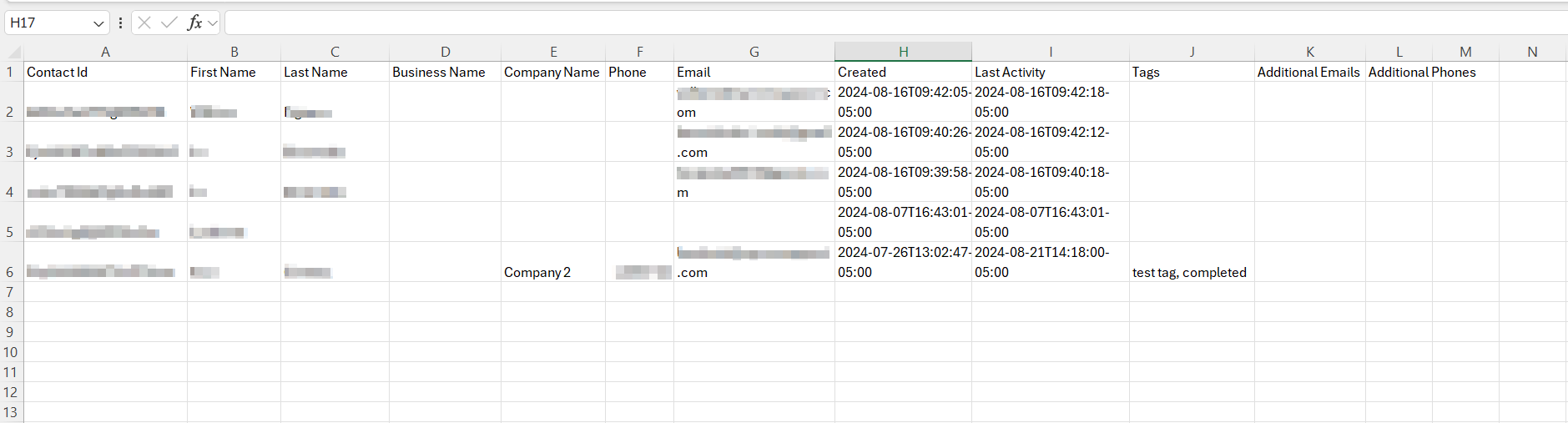
The downloaded spreadsheet includes column headers with the contact's details: Contact ID, first name, last name, business name, phone number, email address, date created, last activity date, and tags.
Contact ID
Each contact is assigned a unique Contact ID, which acts as a tracking identifier for easy reference and management.

First and Last Name
The first and last name fields let you identify the contact by name.

Business Name
The business name column shows the business associated with the contact, making it easier to identify contacts linked to specific businesses.

Company Name
The company name column helps identify contacts linked to a company created in the platform.

Phone Number
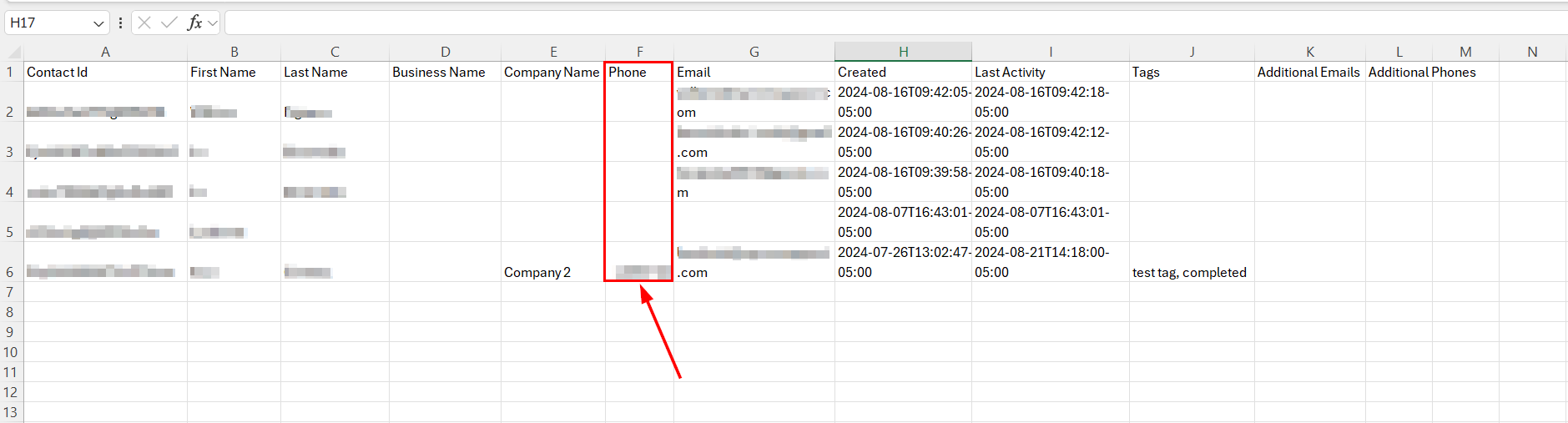
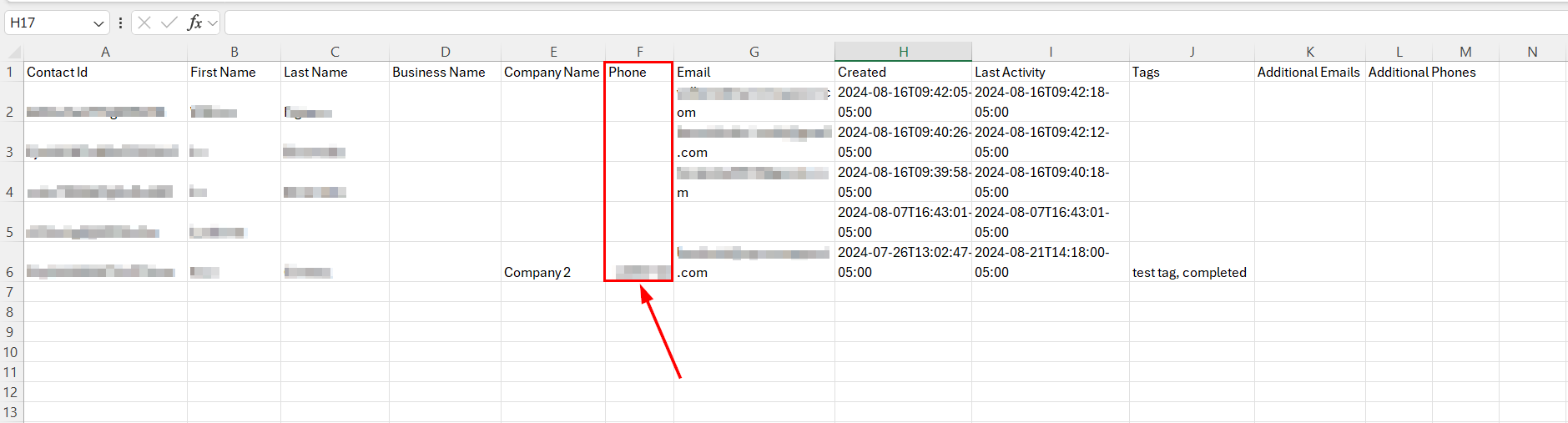
This column shows the contact's primary phone number.
Email Address
This column shows the contact's primary email address.
Created
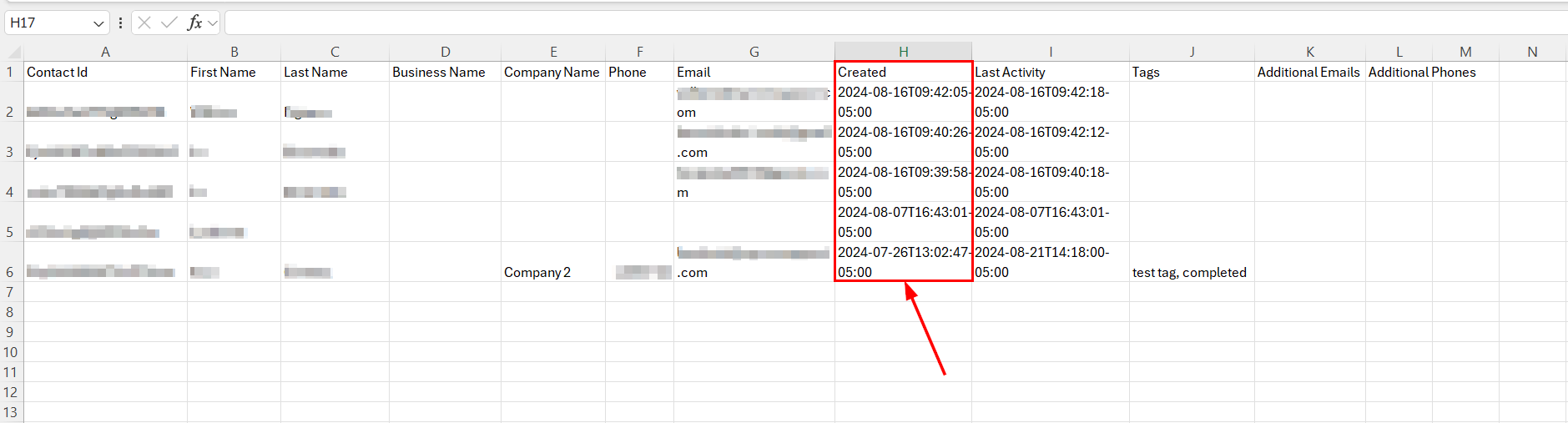
This column records when the contact was added to the system, formatted as YYYY-MM-DD THH:MM:SS.
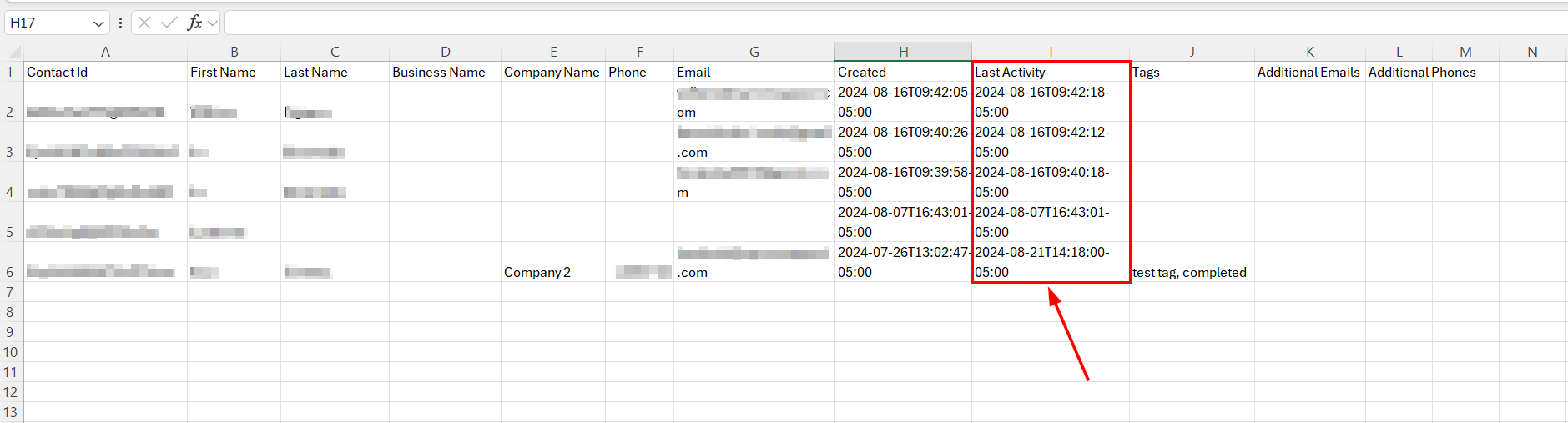
Activity Log
The Last Activity column shows the most recent updates to a contact's record, including the exact date and time of the changes.
Tag
This column shows any tags associated with the contact.

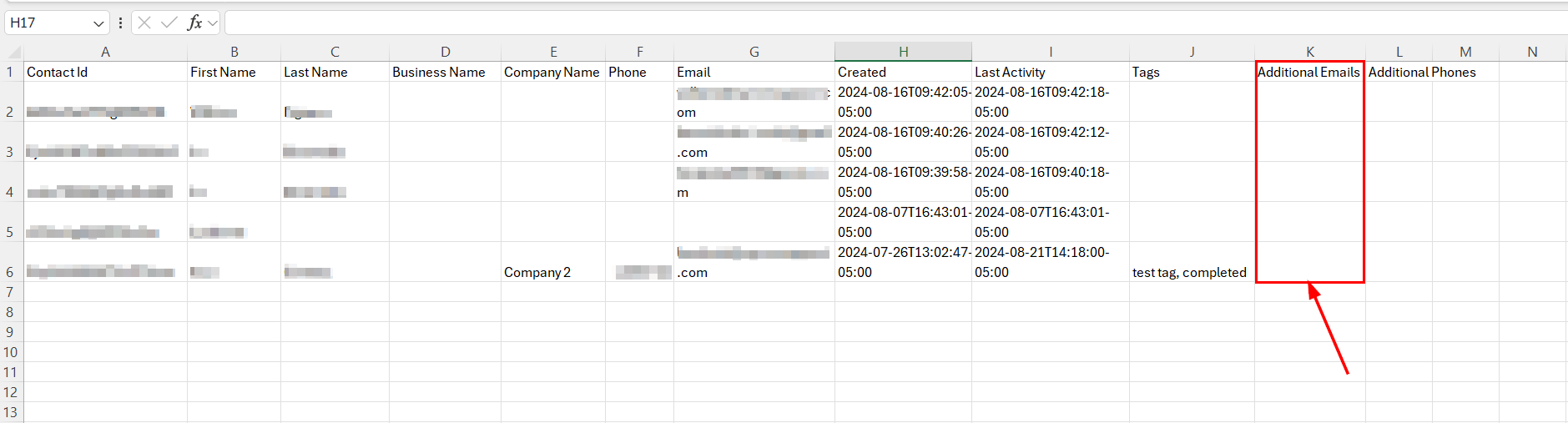
Additional Emails
For contacts with more than one email address, any additional emails will appear in this column.
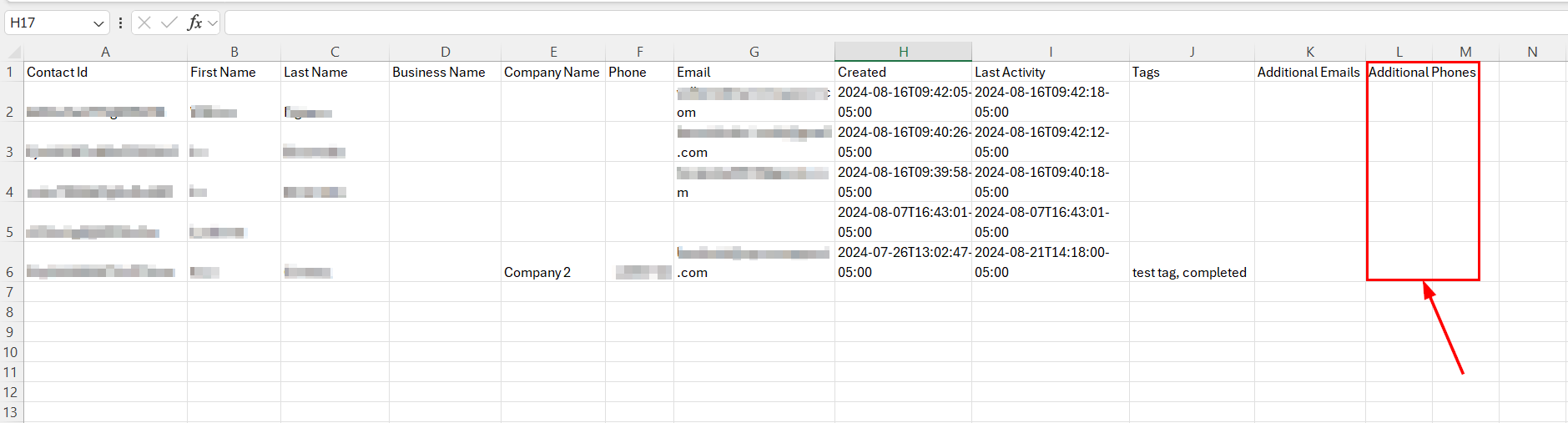
Additional Phones
For contacts with more than one phone number, any additional numbers will appear in this column.
You now have everything you need to export your contacts.