On the far right side of any contact card, you'll find the contact information panel, which contains additional details about the contact. The panel has seven tabs, Activity, Associations, Task, Notes, Appointments, Documents, and Payments, each giving you more control over a different aspect of the contact and letting you take action as needed.

Contact Activity Tab
Contact activity is essential for tracking where the contact has visited your website, how they got in touch with you (via email, phone, or text), and even when they made a purchase.

Contact Activity History
In the Activity tab, you can view historical data and a timeline of your contact's activities, including any interactions with your website. Please note that website activity will only be displayed if your website is built within the platform.

Contact Attribution
Attribution is a very useful tool for understanding where your contact FIRST interacted with your company, and where they LAST interacted.

Contact Associations Tab
In this section, you can view the related objects, opportunities, companies, and association labels linked to the contact.

You can add more associations by clicking the "+Add" button (1) or clicking "Manage Associations" to open the Objects section in a separate tab (2). Up to 10 association labels can be applied between two contacts.

Contact Opportunities Tab
This tab gives you a clear, focused view of all opportunities linked to the contact.

Click + Add to include more connected opportunities. You can select new or existing opportunities.

Contact Tasks Tab
You can manually create or check for pending items using the Task tab. To add a task, give it a title and a due date, then assign it to a registered user. This helps you stay organised and manage your to-do list efficiently.

You can filter, organise, or search for specific tabs using the options at the top.

Or add new tasks by clicking the + Add button at the top.

Contact Notes Tab
The Notes tab lets you record additional information for each contact, which can be really helpful when interacting with customers and new leads.

- To create a note, click + Add.
- Instantly locate specific notes using the search functionality.
- Easily locate your notes by sorting them.
- The pin icon allows you to keep your note at the top of the tab.
- Use this option to check the objects associated with the note.
- Open the action menu to edit or delete an existing note.

Contact Appointments Tab
In the Appointment tab, you can schedule appointments for sales, customer support, or any other purpose, making it easier to manage your time and stay organised.

You can switch between new (1) and previous (2) appointments or search for a specific appointment (3).

Contact Documents Tab
In the Documents tab, you'll have a backup of all important files related to that customer, whether that's a contract you sent out to them, a PDF they sent back, or any internal documents related to that person.

Contact Payments Tab
In the Payments tab, you can carry out payment-related actions and track transactions with your contact, including subscriptions, invoices, and fulfilled payments.

Payment Actions
These are the operations you can complete on behalf of your customers, letting you take the initiative and reduce the chance of errors. There are six actions available:

- Add Cards on File: This allows you to add credit or debit card information to a contact's record for easy checkout, fees, and subscription payments.

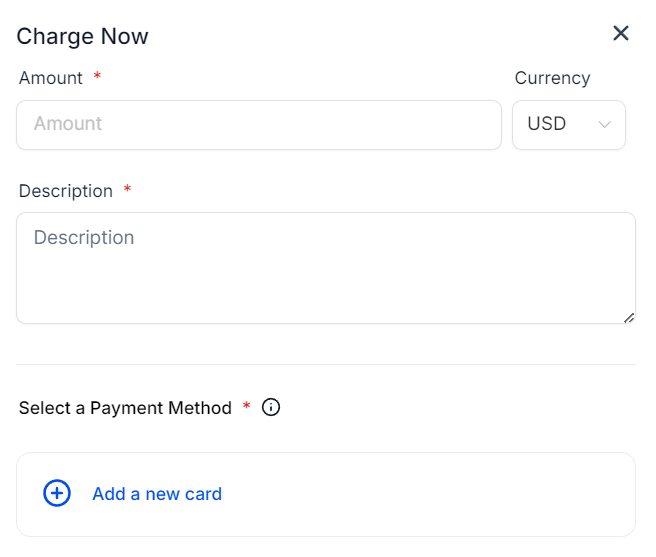
- Charge Now: With this feature, you can take payment by adding the amount and a short description, making it easy to collect payment even when you're in the middle of a call.
- Create Subscription: This will open a pop-up window for you to select the starting date and products for the customer's subscription.

- Create Invoice: Selecting this option will redirect you to the invoice builder, where the contact details will be pre-filled for you.

- Manage Cards: All stored cards will be displayed in a list, with each entry showing the last four digits, expiration date, and any associated label. Both test and live mode cards will appear in their respective lists and can be deleted from those lists. If a card is associated with an active subscription, a prompt will appear to notify you before confirming the deletion. Even if the card is deleted after the prompt, any subscriptions linked to it will no longer have an associated payment method for automatic billing.

- Create Estimate: Selecting this option will redirect you to the estimate builder, where the contact details will be pre-filled for you. Add the relevant products for the estimate, then verify the customer and business information before sending.

Transactions, Subscriptions, Invoices, and Estimates
These tabs let you keep track of the status and details of Transactions, Subscriptions, Invoices, and Estimates that the contacts have with you.

Use these seven options in the Contact Information Panel to get more from your contact management today.