One of the most important parts of running a successful business is keeping consistent follow-through. Staying in touch with your contacts and addressing any outstanding items should always be a priority. That said, managing this effectively can be tricky. By assigning followers to your contacts, you can ensure no contact is overlooked, and you can automate this process using the Add/Remove Contact Followers action.
Adding the Add/Remove Contact Followers Action
First, add an appropriate trigger, then click the "+" button to add an action. Search "Follower" or scroll through the Contact actions, and both the Add/Remove Followers actions will appear as options for selection.

Setting up these actions is simple. Once you've selected the action you want, specify the users to add or remove as contact followers. You can add as many users as needed, giving you flexibility in managing team assignments.

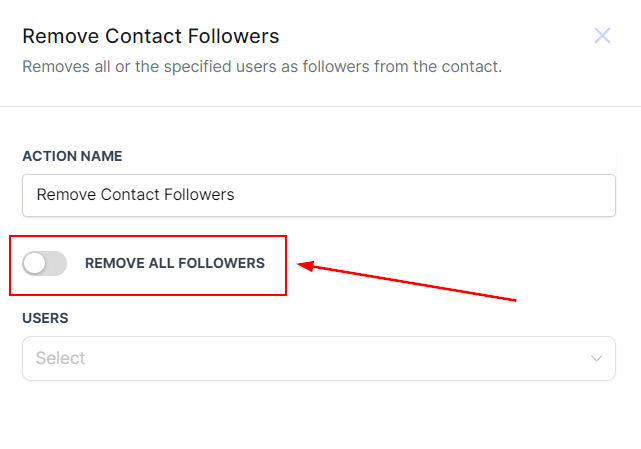
In the Remove action, you can remove all users at once by toggling the "Remove all followers" button.
Once your selections are configured, Save the action.

Publish and Save the workflow and it will be ready to use.

This is particularly useful for businesses where different departments or team members manage different stages of the customer journey. For instance, as a customer moves from one stage to another, you can automate the process of assigning the appropriate followers. Using the Add/Remove Contact Followers action, you can keep a professional, organised approach to customer management.