Calculations are a powerful tool; they give you an edge over the competition. They let you provide estimates immediately, disqualify unfit candidates, and more. That said, delivering results to clients in real time can be time-consuming and fiddly, and if there's a delay, a client may have already moved on.
Using Calculations
By using Math Calculation in your Forms and Surveys, you can apply logic and formulas to provide immediate results based on the data your customers enter. This helps you impress customers, cut waiting times, and make your process more efficient.
Adding The Score Element
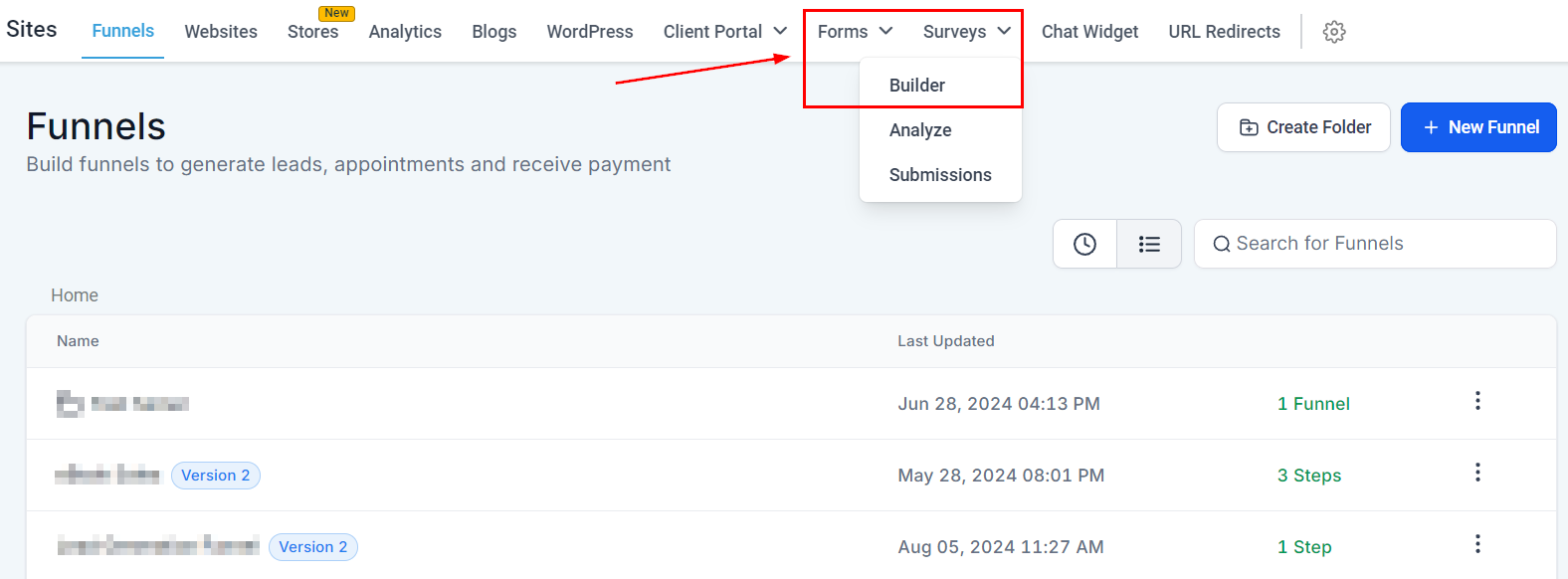
Navigate to the Form/Survey builder inside the Sites section.
Inside the Builder, click the plus sign button to open the elements and select the Score element.
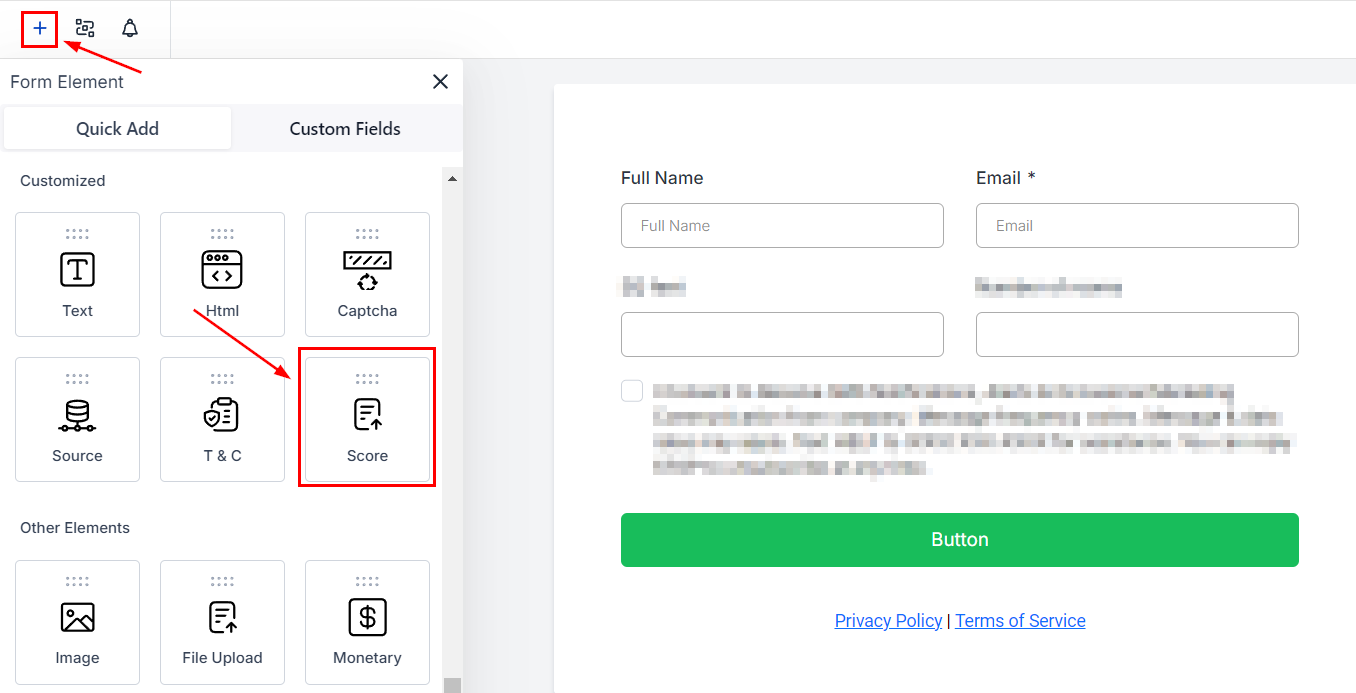
Drag and drop it into place and open the settings.

Switch to the Calculations tab to set the logic you want to follow.

Setting the Field Value
You can use this for numeric, monetary, and custom fields for Radio Select, Checkbox, Single Dropdown, and Multi Dropdown fields. To use these custom fields, select them from the Quick Add menu.

Click on the added element and go to the Options section, where you'll toggle Enable Calculations.

Assign scores to each option in the Calculation Value section before adding the fields to your Calculation Logic.

Creating Calculation Logic
To set the formula the score element will follow, start by entering a number or field, selecting an operator, and entering a second number or field.

Click Save to keep the changes, then click Preview to see real-time calculations as data enters.

You can now offer real-time calculations directly from your forms and surveys.

This improves the experience for your clients and removes the need to follow up with results separately, streamlining your process.