Your workflows can already handle a lot, from automating responses to processing payments to keeping your team on track. But even with a growing list of actions, you might find yourself wanting to do something that isn't quite covered. That's where Custom Code Action comes in.
Adding Custom Code
Click the "+" button and add the action; it sits under Internal Tools, but you can also search for it.

The programming language is JavaScript.
📌NOTE: This is a Premium Action.

If you have custom values to include, "Property to be included in code" is where they go. If you need more than two, click +Add Property to get more fields.
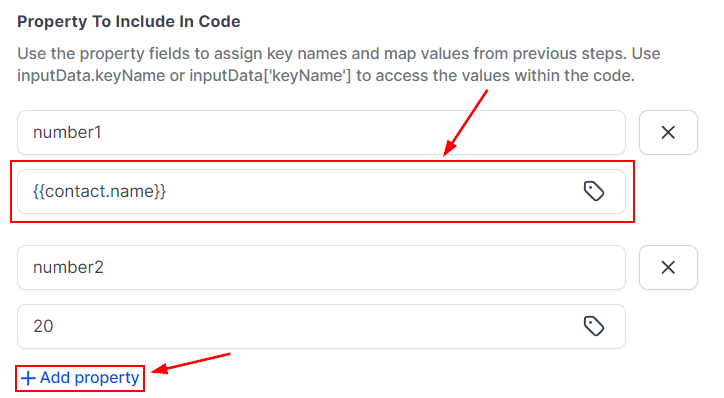
In the Code section you'll find a box where you can write your code. It comes prepopulated with a sample for reference. The output should be a JavaScript Object or Array of Objects.

Adding HTTPS Requests
External HTTP Requests in Custom Code let you quickly add your preferred HTTP Method without having to type everything out manually. This option appears at the top of the code box.

Click it and select from preset HTTP Methods in a dropdown menu.

This populates the code needed for that action at the bottom of the editor.

Build With AI
Alternatively, generate custom code snippets using AI by clicking the Build With AI button.

Enter your prompt in the field provided, then click Generate. AI-Powered Code Generation lets you describe what you want in plain language, and the AI writes the corresponding JavaScript for you. For example, you might say: "I have an API that returns a date in MM-DD-YYYY format. Can you help me convert it to YYYY-MM-DD?" The AI will generate the appropriate code to do exactly that.

Review the result and insert it into your workflow if you're happy with it.

If the first result isn't quite right, use the Regenerate feature to produce a fresh version with a single click.

Testing Your Code
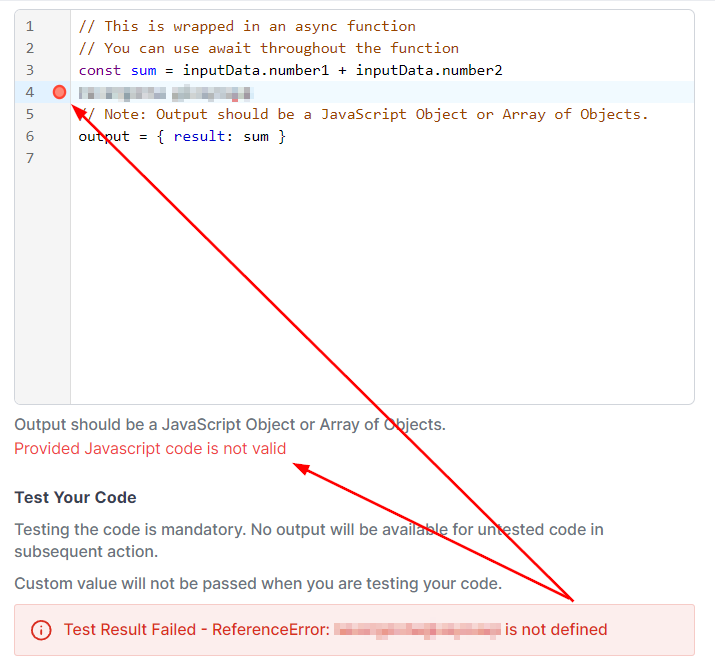
Once your code is ready, click the "Run Test" button; this step is mandatory. If there are any errors, the result will show as "Test Result Failed." Review your code carefully and correct any issues. The system will point to where the error is, making it straightforward to fix.
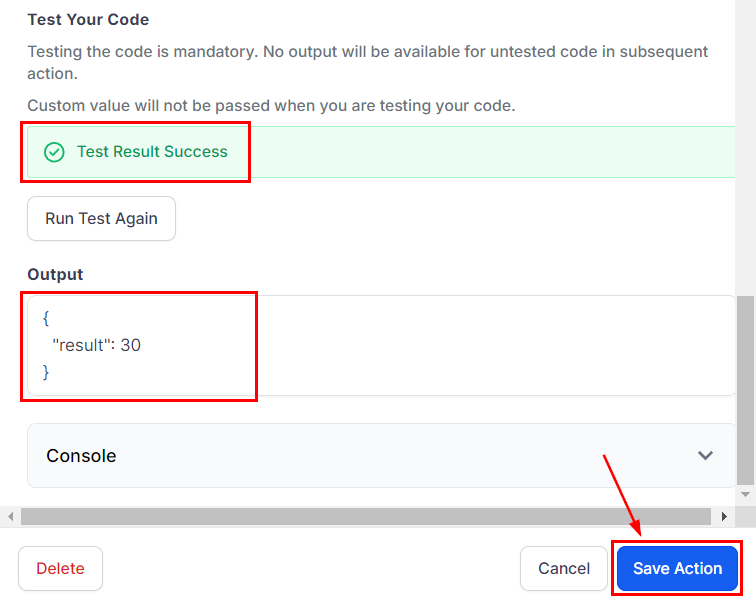
If there are no errors, it will show "Test Result Success" along with an output. At that point you can save the action.
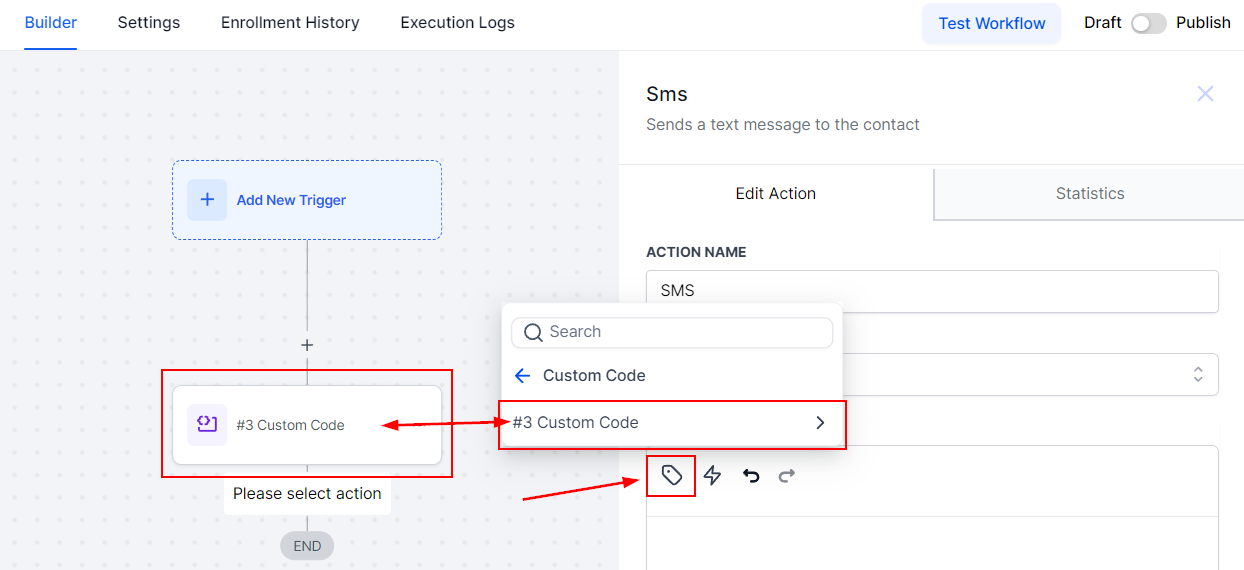
You can then access your custom values in any text field; all custom code outputs appear in the same section, named to match the action.
Custom Code Action lets you extend your workflows with tailored functionality, automate more complex processes, and pull in external data. The flexibility and built-in testing mean you can go beyond the standard actions and build something that works exactly the way you need it to.
Important notes
- Custom values, except contact information, will not be passed when testing your code.
- Use the Property fields to assign key names and map values from previous steps.
Frequently Asked Questions
Q: Do I need to be a programmer to use the Custom Code Action?
- A: Basic knowledge of JavaScript is recommended, but the feature provides sample code and preset HTTP methods to help you get started.
Q: What happens if I encounter an error while testing the code?
- A: The system will indicate where the error is located, allowing you to troubleshoot and fix it. You must resolve all errors before saving the action.
Q: Can I use Custom Code to pull data from external sources?
- A: Yes! You can use the HTTP Requests feature within Custom Code to integrate data from APIs or external services into your workflow.
Q: Are there any limitations to the Custom Code Action?
- A: Yes, contact information is passed during testing, but other custom values are not. Additionally, you'll need to manually assign key names in the Property fields for mapping values from previous steps.